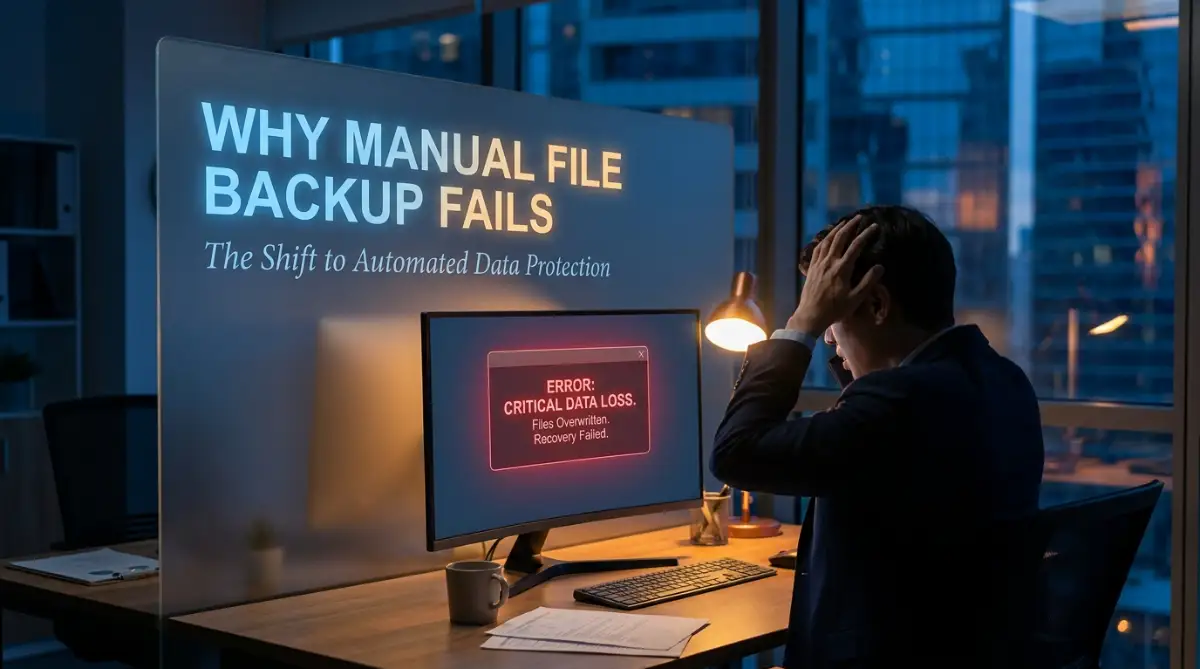
The Silent Nightmare of Losing Your Hard Work
Have you ever stared blankly at your computer screen after your hard drive just died? Yeah, it really sucks. We put so much trust in cheap USB drives and fragile laptops, but one random glitch can wipe out weeks of your hard work in seconds. Let's fix that mess today so you never have to panic over a corrupted file or lost project again.
Right now, countless hardworking people are walking directly into that exact same trap. We trust our fragile memory and basic hard drives to keep our most important memories, client projects, and business records safe. But human memory is terribly flawed, and physical storage devices eventually break down.
When you rely entirely on saving things yourself, you live with a constant, heavy anxiety hanging over your head. You always have to wonder if you remembered to drag that important folder over to your USB drive before leaving the office.
This constant worry slowly eats away at your mental peace. Instead of focusing deeply on doing great work, a part of your brain is always stressing about losing it.

You find yourself naming documents things like "Project_Final", then "Project_Final_Real", and eventually "Project_Final_v6_Done". This messy habit creates extreme confusion when you actually need to find the correct document weeks later.
We waste hours of our precious time sorting through these chaotic folders, trying to figure out which document is the most recent. The fear of accidentally deleting something important forces us to keep dozens of useless copies, completely cluttering our digital workspace.

What You Will Learn Today (At a Glance):
- Why saving files manually is a trap waiting to catch you.
- How background tracking works like a personal time machine for your folders.
- The easy way to set up your first automatic safety net in under 10 minutes.
- Why simple cloud syncing (like basic Google Drive) is NOT the same as real version history.
Understanding the Hidden Cost of Human Error
We like to believe that we are highly organized and in total control of our digital lives. But the reality is that life gets busy, distractions happen, and we simply forget to click that save button.
Think about how many times a sudden power outage or a random software crash has wiped out hours of your intense focus. Manual saving requires you to be perfect every single time, which is mathematically impossible for any human being.
Even if you are highly disciplined, manual backup systems are full of dangerous loopholes. You might back up your main computer, but completely forget about the important files sitting on your phone or tablet.
This scattered approach means your data is never truly safe. When disaster finally strikes, the emotional toll is completely overwhelming.
The Real Cost of Data Loss (A Quick Reality Check):
- Time Wasted: Average of 5 to 7 days trying to recreate lost files from memory.
- Money Lost: Paying data recovery experts anywhere from $300 to $1,500 (with no guarantee it will work).
- Mental Toll: High stress, missed deadlines, and losing the trust of your clients or boss.
- Conclusion: Spending $5 a month on a background tracker is way cheaper than losing your mind.
Losing a file is not just about losing data; it is about losing the time, energy, and creative passion you poured into that specific work. Many professionals actually experience severe burnout simply because they had to recreate lost work from scratch.
How Automated Systems Act Like a Time Machine
The best way to fix this massive problem is to remove the human element completely. Automation steps in to do the exact job we are so terrible at doing consistently.
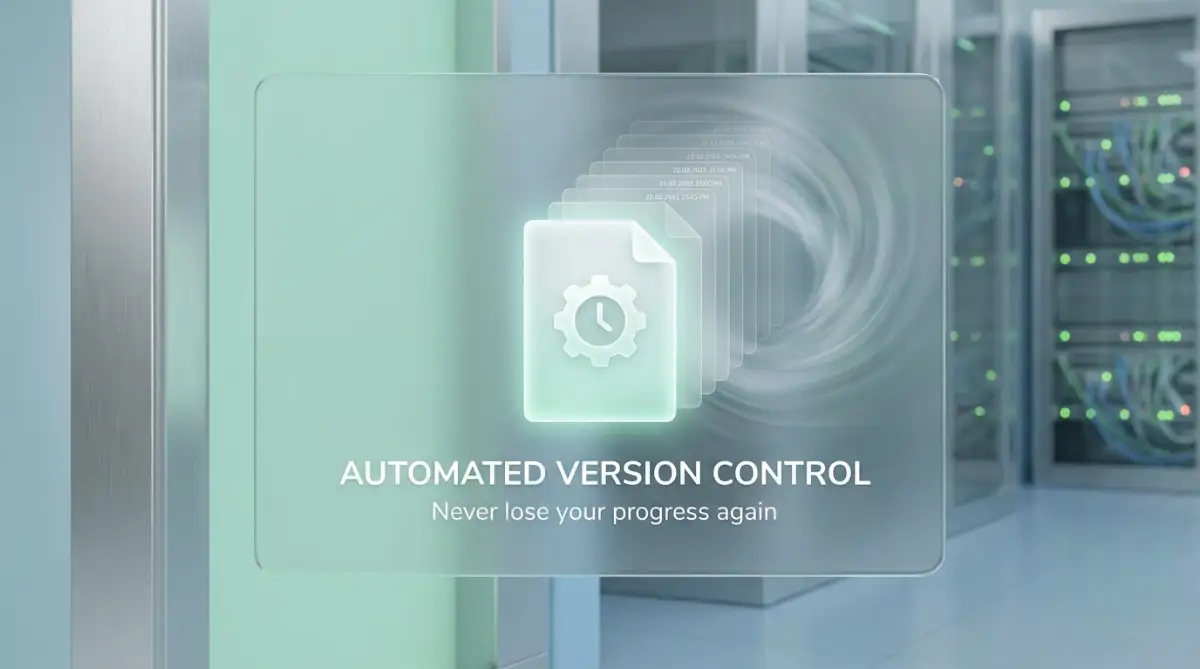
Automated version control sounds like a complicated technical term, but it is actually just a smart safety net for your files. Imagine having a magic notebook that remembers every single word you ever wrote, even if you erase a page.
Whenever you type a new sentence or change a color on a design, the system quietly takes a snapshot of your progress in the background. You never have to click a button, drag a folder, or rename a document ever again.
If you make a terrible mistake today, you can simply tell the system to take you back to exactly how the file looked yesterday afternoon. It completely eliminates the fear of making mistakes, allowing you to experiment freely with your work.

Setting Up Your First Invisible Safety Net
To get started with this smart technology, you do not need any advanced technical skills. The transition from chaotic folders to a smooth, automated workflow is surprisingly easy.
The first thing you need to do is identify exactly where your most valuable files currently live. Are they sitting on your desktop, scattered across email attachments, or hiding in random download folders?
Once you know where your files are, you can choose a simple automated tracking tool that matches your specific daily needs. There are many user-friendly software options available today that run quietly in the background while you work.
Here is exactly how you want to approach setting this up:
Start by connecting your main working folders directly to the automated tracking software. Tell the system to monitor these specific folders for any changes, additions, or deletions.
Once connected, the software will create a completely secure, mirrored copy of your work in a safe digital location. Every time you hit save on your keyboard, the system logs that exact moment in a neat, chronological history list.
Check out this detailed video explanation to see exactly how these tools work behind the scenes.
This visual breakdown perfectly explains why having a digital history is the smartest move you can make for your personal files.
The Emotional Relief of True Data Safety
I cannot fully describe the amazing feeling of relief you get when you stop worrying about losing your work. Once my automated tracking system was running smoothly, my daily productivity actually skyrocketed.
You no longer have to interrupt your deep focus to plug in an external drive and wait for files to transfer. The software handles all the heavy lifting, allowing you to stay completely immersed in your current task.
If your laptop gets stolen or suddenly breaks down, your blood pressure will not spike in a panic. You simply log into your account from a brand new device, and every single file is waiting right there for you.
Myth vs Reality: Clearing Up Common Confusions
Many people hesitate to use smart tracking systems because they believe common myths about how the technology works. Let us clear up some of these misunderstandings right now.
Myth 1: Automation will slow down my computer and drain my battery.
Reality: Modern tracking tools are incredibly lightweight and only process the tiny changes you make, rather than copying entire heavy files over and over. You will likely never even notice the software running in the background.
Myth 2: I will lose control over my privacy if a system manages my files.
Reality: Quality automation software uses heavy encryption to lock your data safely. You are the only person who holds the digital key to open and view your personal history.
Myth 3: These systems are too complicated for non-technical people to learn.
Reality: If you know how to install a simple app on your phone, you have enough skill to set up basic automated version tracking. The interfaces are highly visual and designed for average everyday users.
Comparing the Old Way with the Smart Way
Sometimes, looking at the exact differences side by side is the best way to understand the value of a new method. Below is a simple comparison of how these two approaches impact your daily routine.
This clear comparison highlights just how much unnecessary stress we put ourselves through. By clinging to outdated methods, we are actively choosing to make our daily work harder than it needs to be.
💡 My Quick Pro-Tip: The 3-2-1 Rule
If you want to be completely safe, steal this trick from IT professionals. Keep 3 copies of your data (1 original, 2 backups). Store them on 2 different types of media (like your laptop and an external drive). Keep 1 copy completely off-site (like an automated cloud history vault). If you do this, you are practically bulletproof.
Real-Life Scenarios Where Automation Wins
To really understand the power of this shift, let us look at how everyday professionals benefit from smart tracking tools.
Take a freelance graphic designer, for example. A designer might create twenty different variations of a company logo for a demanding client. If the client suddenly decides they loved the very first concept from three weeks ago, a manual system makes finding that exact file a nightmare.
With an automated history log, the designer simply scrolls back to week one, clicks restore, and sends the file in seconds. The client is highly impressed by the speed, and the designer avoids hours of frustration.
Now imagine an independent content creator writing a massive book or a long script. They might accidentally delete an entire chapter and not realize it until two days later.
If they were using basic Word documents and saving over the same file, those precious pages are gone forever. But with proper version history, they can easily dig into the archives and pull those missing pages right back out.
Even remote team collaborators experience massive benefits when working together on shared documents. If a coworker accidentally deletes your important presentation slides, you do not have to confront them or panic. You just rewind the document back one hour and keep moving forward peacefully.
Building a Long-Term Strategy for Digital Health
Protecting your data is not just a one-time task; it is about building a healthy digital lifestyle. You want to create an environment where your ideas are protected completely by default.
Start treating your digital files exactly like you treat your physical valuables. You would never leave your wallet sitting on a park bench, so why leave your important documents sitting naked on a fragile hard drive?
By setting up an invisible safety net today, you are giving a massive gift to your future self. The next time a computer crashes or a file gets corrupted, you will just smile, click a button, and get right back to work.
Taking Your File Security to the Next Level
Once you decide to let smart software handle your daily saves, you open up a whole new world of digital organization. But simply turning the software on is only the very first step toward true peace of mind.
To get the absolute best results from your new automated tracking system, you need to develop a few smart habits. These habits will make sure your software runs perfectly without ever interrupting your daily workflow.
Think of this process like buying a brand new security system for your house. The cameras and alarms are incredibly helpful, but they work much better if you actually remember to lock the front door first.
One of the smartest things you can do is separate your active projects from your deep archives. Do not force your tracking software to constantly scan massive folders filled with old movies or heavy software installers.
Instead, create a dedicated "Active Work" folder on your computer and tell the software to only watch that specific area. This keeps the software incredibly fast and prevents it from slowing down your internet connection.
Mastering the Art of Clean Folder Structures
Even though the software remembers everything for you, keeping a clean digital workspace is still highly recommended. A messy workspace creates mental clutter, which directly impacts your daily productivity and focus.
You should aim to organize your main tracking folder into clear, logical categories that make sense to your brain. For example, setting up folders by client name or by specific months makes retrieving old files incredibly fast.
Here is a quick checklist for structuring your active folders:
- Always use simple, readable folder names without weird symbols.
- Keep your project assets (like images or audio) in a sub-folder right next to the main document.
- Never dump random downloads into your primary tracked work folder.
When you keep your digital house tidy, the automated system can map out your history much more effectively. If you ever need to restore a project, finding the exact location will take just a few seconds.
For those who regularly work with large teams, setting up proper permissions is absolutely essential. You want to make sure your tracking software is configured to ignore changes made by unauthorized users.
Testing Your Invisible Safety Net
Many professionals set up their background tracking tools and then completely forget about them for months. This is actually a very dangerous habit that can lead to massive disappointment later on.
Imagine paying for car insurance for years, only to find out your policy was canceled right when you got into an accident. You need to verify that your safety net is actually catching your files correctly.
Every single month, pick a random Tuesday to perform a quick "fire drill" on your computer. Open your software dashboard, pick a random document from last week, and try to restore an older version of it.
This simple five-minute test guarantees that your history logs are working perfectly. If you ever spot a problem during this test, you can fix the software settings before a real emergency happens.
Following official guidelines, like the data protection recommendations from CISA, reminds us that regular testing is just as important as the backup itself. If you cannot successfully restore a file during a practice run, your system is completely useless.
Protecting Your System from Sudden Power Failures
We often forget how heavily our digital tools rely on a steady flow of physical electricity. A sudden lightning storm or unexpected power grid failure can corrupt a file at the exact moment your software is trying to track it.
If your computer suddenly shuts down while writing data to the hard drive, that specific document can become permanently damaged. Even the smartest tracking software cannot save a file if the computer dies halfway through the saving process.
This is why understanding basic power protection is a huge part of your overall data strategy. Just like understanding sustainable power systems helps homeowners protect their physical appliances, knowing how to protect your computer saves your digital assets.
Always plug your main workstation into a battery backup unit, commonly known as a UPS. This small device gives you five extra minutes of battery life during a blackout, allowing your tracking software to finish its current task smoothly.
Those five extra minutes are the difference between losing an entire day of design work and walking away with a smile. It is a tiny physical investment that perfectly compliments your new software tools.
The Hidden Traps That Destroy Digital Portfolios
Even with the best intentions, people often fall into dangerous traps when trying to organize their digital lives. The transition from manual habits to smart automation comes with a few common misunderstandings.
If you do not recognize these hidden traps early, you might think your data is safe when it is actually highly exposed. Let us walk through the most dangerous mistakes people make and how you can easily avoid them.
Believing Cloud Syncing is the Same as Version History
This is easily the most common and devastating mistake professionals make with their computers today. Millions of people believe that using basic Google Drive or Dropbox folders means their work is fully protected.
Cloud syncing simply mirrors exactly what is happening on your main computer right now. If you accidentally delete a paragraph and close the document, the cloud instantly deletes that paragraph too.
Syncing tools are designed for easy access across multiple devices, not for saving your past mistakes. If a malicious virus attacks your local folder and locks your files, the syncing software will happily upload those locked files to the cloud.
True version tracking acts completely differently because it freezes moments in time independently. A university technology department perfectly explains this difference by highlighting the importance of independent version control for research data.
You need a tool that separates your working files from the historical archive. Never rely strictly on a basic sync folder to save you from a major accidental deletion.
Ignoring the Annoying Red Notification Badges
We all get extremely tired of our phones and computers constantly sending us notification pop-ups. It is very tempting to just click "ignore" or swipe away those little warning messages without actually reading them.
However, when your tracking software tries to warn you about a problem, you must pay attention immediately. These tools usually run silently in the background and only alert you when something is genuinely broken.
If you see a red icon on your taskbar, it usually means:
- Your software was disconnected from the internet and cannot update the history log.
- Your storage space limit has been reached and tracking has completely paused.
- A specific file format is blocking the software from taking a snapshot.
If you ignore these warnings for three weeks, you are actively working without a safety net for those entire three weeks. If your hard drive crashes during that silent period, your tracking tool will have absolutely nothing to restore for you.
Treat these software warnings with the same urgency you would treat a low oil light on your car dashboard. Taking three minutes to fix a disconnected account will save you three weeks of crying over lost documents later.
Failing to Protect the Software Account Itself
Sometimes the biggest threat to your data is not a broken hard drive, but a weak password on your tracking account. People often secure their main computer with a strong fingerprint lock but use a terrible password for their history archive.
If someone gains access to your main software dashboard, they can easily wipe out your entire digital history in seconds. Your automated system is holding your most valuable professional work, so it requires maximum security doors.
Always turn on two-factor authentication for the app or website that manages your automated saves. This means even if someone guesses your password, they still need your physical phone to open the digital vault.
It is also highly recommended to spend a few minutes identifying browser security flaws on the computer you use most often. A simple browser virus can easily spy on your keystrokes and steal the password to your data management software.
You should approach your digital organization with the same defensive mindset you use for your online bank account. Securing the perimeter ensures that your smart tracking tools can do their job in complete peace.
Trusting Only One Physical Location
Even with the smartest software tracking your every move, you still need to think about physical reality. Sometimes entire systems fail, servers go offline, or an entire office gets flooded during a massive storm.
Relying entirely on a single tool or a single location to hold your digital history is a very risky game. You want to make sure your automated history is occasionally backed up to a completely separate physical location.
Industry professionals often follow a specific method to completely eliminate the risk of total loss. This strategy is widely known and highly recommended by top digital storage experts around the world.
Every few months, it is still a good idea to export a manual copy of your most massive, completed projects to a secure external drive. You lock this drive in a safe place, purely as a last resort against an unbelievable digital disaster.
By combining the incredible speed of daily automation with an occasional physical backup, your work becomes completely bulletproof. This layered approach ensures that no single technical failure can ever destroy your professional reputation or your personal memories.
Your Immediate Action Plan for Data Safety
Transitioning away from messy manual habits does not have to be a stressful or complicated project. In fact, you can completely change your digital security workflow in less than thirty minutes this afternoon.
You already know the deep anxiety that comes with losing a file, and you now understand exactly how automation solves this problem. It is time to stop procrastinating and start protecting the creative energy you pour into your daily projects.
Here is exactly what you should do tomorrow morning:
First, clean up your desktop and gather all your active projects into one central folder. Second, choose a highly-rated automated tracking software that fits your current budget and install it on your machine.
Third, point that software to your clean folder and watch as it silently creates your very first historical snapshot. Finally, take a deep breath and enjoy the incredible feeling of knowing your hard work is finally safe.
If you are generally interested in exploring modern technology solutions for your daily life, this simple upgrade is the best place to start. Building strong organizational habits naturally transfers over to better decision-making in other areas of your professional career.
Just like we learn to avoid preventing poor data practices in modern technology, we must eliminate poor habits in our own daily routines. Stop naming your files "Final_Version_05" and let the smart tools do the heavy lifting for you.
I honestly wish someone had grabbed me by the shoulders and forced me to set up this system ten years ago. It would have saved me so many sleepless nights, angry client phone calls, and buckets of completely unnecessary stress. Take twenty minutes today to set up your invisible safety net, because your future peace of mind is totally worth the effort.
Questions People Always Ask About File Protection
Is cloud storage the exact same thing as version history?
No, they are actually very different tools. Basic cloud storage simply copies what is currently on your computer, meaning if you delete a file, it deletes it in the cloud too. True version history keeps an independent, locked record of every past change you ever made.
Will automated tracking tools slow down my gaming or video editing?
Modern tracking software is designed to be incredibly lightweight and mostly unnoticeable. However, if you are playing a heavy game or rendering a massive video, you can simply click "pause syncing" in the app menu for a few hours.
How far back in time can I restore a deleted document?
This entirely depends on the specific software plan you choose to purchase. Some basic free plans hold your history for 30 days, while premium professional tools can keep your exact file history for an entire year or more.
Can I use these automated tools on my smartphone or tablet?
Yes, almost all modern data protection services offer mobile apps that sync seamlessly with your computer. This means if you write a brilliant idea on your phone during a train ride, the version history is instantly logged safely in the background.
What happens if I lose my internet connection while working?
Do not panic, your work is not lost. The tracking software will silently record all your changes locally on your computer's hard drive while you are offline. The exact moment your Wi-Fi connects again, it will push all those saved histories directly into your secure digital vault.
Disclaimer: The information provided in this article is for educational and informational purposes only. Data security technology changes rapidly, and you should always verify specific software features, terms, and conditions before purchasing or relying on any data protection service. The author and publisher are not responsible for any accidental data loss, corrupted files, or technical issues that may occur on your personal devices.