
That One Silent Mistake That Cost Me Everything
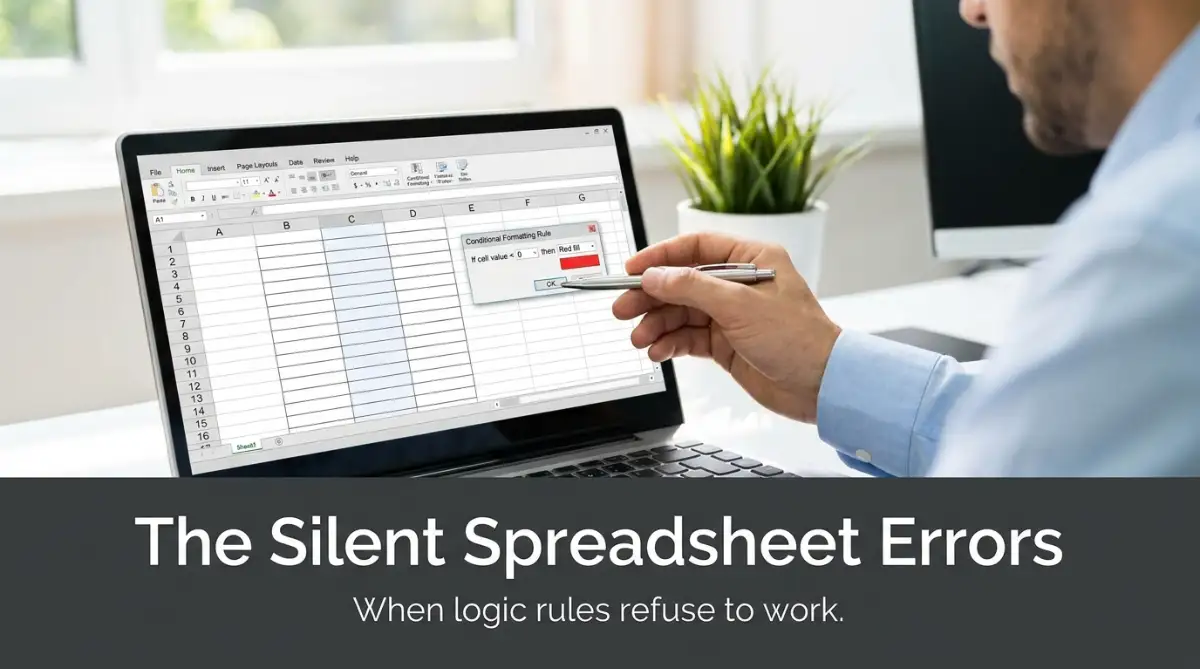
We build automated spreadsheets because we want to trust them. I used to think my color-coded alert system was foolproof—until a single missed red highlight caused me to blow past a massive client deadline. That silent failure taught me a very hard lesson: when your background logic quietly breaks, your entire workflow falls apart without a single warning sign. Today, I am going to show you exactly why your cells are refusing to change color and how you can fix these hidden errors for good.
A week later, my phone rang with a very angry client on the other end of the line. We had completely missed a major milestone because my automated alert system simply chose to stay silent. The cells never changed color, no warnings popped up, and my team assumed everything was perfectly on track. I felt an overwhelming wave of embarrassment and panic wash over me.
That was the exact moment I realized how heavily I relied on visual cues in my daily workflow. When automation works, it feels like magic. But when it silently breaks, it turns into a hidden trap waiting to ruin your day.
What You Will Learn Today (Quick Fixes)
- Why hidden text formats stop your numbers from triggering alerts.
- How an invisible "space" character silently ruins your logic rules.
- The exact way to lock moving targets so formulas stop shifting.
- A simple strategy to clean up overlapping and broken instructions.
The Heavy Toll of Silent Automation Failures
You find yourself manually double-checking every single row just to feel safe. The exact system that was supposed to save you time is suddenly eating up hours of your day. It completely destroys your mental peace. You constantly wonder if unpaid invoices are slipping through the cracks or if inventory levels are dropping to zero without any warning.
This silent failure creates a persistent background anxiety for small business owners and busy professionals alike. You start losing confidence in your own systems. Instead of focusing on growing your business, you are stuck playing a guessing game with a grid of boxes.
The most frustrating part is that there are rarely any error messages. The software does not tell you that your logic is broken. It just sits there, looking completely normal, while your actual business operations slowly catch on fire.
The Hidden Ghosts Haunting Your Cells
To truly fix this headache, we first need to understand how machines actually read information. Computers are incredibly smart, but they are also exceptionally literal. They do not understand context or human intentions.
If you ask a machine to look for the number five, it will only look for the exact mathematical value of five. It will not recognize the word spelled out, nor will it recognize a number five that accidentally has a blank space sitting right next to it. This tiny gap in communication is where almost all automation nightmares begin.
The Great Divide Between Words and Numbers
One of the most common reasons your visual alerts fail is a simple case of mistaken identity. You might see a clean number sitting in a column, but your spreadsheet might be seeing a regular piece of text.
This happens all the time when you download reports from an external software or bank portal. The external system exports the numbers as plain text characters. When your logic rule tries to check if that value is greater than zero, it gets confused. It cannot do math on a word.
To fix this today, you need to highlight your problem columns and check their specific data format. Look closely at how the data behaves. By default, pure numbers usually sit on the right side of the box, while text usually sits on the left. If your supposed numbers are hugging the left wall, your alerts are practically guaranteed to fail.
You can easily resolve this by forcing the entire column into a strict mathematical format. Once the system recognizes them as actual numbers again, your warning colors will immediately snap back to life.
The Invisible Enemy of Extra Spaces
Sometimes, the data format is perfectly correct, but the logic still refuses to trigger. This is usually the work of invisible characters, most commonly trailing spaces.
Imagine typing a name into a box and accidentally hitting the spacebar one extra time before moving on. To your human eyes, the word looks exactly the same. But to the automated logic, "Pending" and "Pending " are two entirely different things.
When your rule says to turn red if the status is "Pending", it will completely ignore the cell with the extra invisible space. This is a massive headache for teams that manually type information into shared documents.
Pro Tip: I learned this the hard way after blaming my software for weeks. Now, I always use built-in data cleanup tools to strip away extra spaces before I even attempt to build logic rules. It takes ten seconds but saves hours of my sanity.
To stop this from happening, you need to restrict how people enter data. Instead of letting team members type freely, force them to select options from a locked dropdown menu. This completely eliminates the chance of human typos ruining your beautifully designed tracking system.
💡 Quick Reality Check: Data Entry Myths
- The Myth: Telling your team "just be careful when typing" is enough to keep data clean.
- The Reality: Humans will always make mistakes. If you do not lock your columns with strict dropdown menus, your automated rules will eventually break. A single accidental spacebar tap is all it takes to ruin your tracking dashboard
Locking Down Your Moving Targets
Have you ever created a beautiful warning color on one specific row, dragged it down to apply it to the rest of the sheet, and watched everything instantly break? You are not alone. This is an issue with how the software understands movement and directions.
Spreadsheets are designed to be extremely helpful by automatically adjusting reference points when you copy things. If a rule looks at the box immediately to its left, copying that rule downward tells it to keep looking at the box to its left on the new row.
This is usually great, but it becomes a disaster when your logic needs to check against a fixed target. For example, you might have today's date sitting at the very top of your document. You want every row to compare its own deadline against that single master date.
If you do not lock that specific target in place, the logic rule will start sliding down the page along with your data. It will eventually start comparing your deadlines against empty space.
Watch This Expert Explanation
If you are constantly fighting with rules that break when you copy them, this quick video beautifully breaks down how to lock your references in place permanently. It is a total game-changer for large documents!
To solve this moving target problem, you must tell the system to freeze the exact location of your master target. By adding specific locking symbols to your logic, you build a solid anchor. No matter how much data you add or where you copy the rule, it will always look back at that exact anchor point.
The Battle of Overlapping Instructions
Another reason your visual alerts might be acting totally crazy is an internal conflict of rules. As your documents grow older and larger, you naturally add more and more instructions over time.
You might have one rule that says to highlight everything from last year in yellow. Then, a few months later, you add another rule saying to highlight everything assigned to Sarah in blue. What happens when Sarah is assigned a project from last year?
The system does not know which color to pick. It gets stuck trying to follow two conflicting orders at the exact same time. Usually, it simply defaults to whichever rule was created most recently, completely covering up the other warning sign you desperately needed to see.

To fix this chaotic overlap, you must become the manager of your own logic rules. Every system has a central menu where you can view every single rule applied to your document.
You need to open this menu and look at the order of operations. You can manually drag the most important rules to the very top of the list. Then, you can explicitly tell the system to stop reading any further instructions once a top-priority rule is met.
This creates a clean, predictable hierarchy. If an invoice is both overdue and unpaid, you can ensure it always flashes red first, ignoring any lesser rules that might try to turn it green.
Treating Your Document Like a Science Lab
When people try to fix these broken alerts, they usually edit the rules directly on their live documents. This is a very dangerous game.
Changing logic rules while people are actively working can cause massive confusion. You might accidentally turn an entire financial report completely black while trying to fix one tiny column.
Instead, you need to create an isolated sandbox environment. Make a complete copy of your broken document and do all of your troubleshooting there. Strip away all the complex formatting and leave only the raw data.
In this safe space, you can test your logic one step at a time. Apply a simple rule and watch how the data reacts. Once you are absolutely certain the logic is flawless and stable, you can confidently apply it back to your live business operations. Taking this careful, methodical approach will drastically reduce your stress levels and rebuild your trust in automation.
Taking Complete Control Over Your Automation Rules
Once you fix the basic hidden errors, you might start feeling a bit more confident. But to truly bulletproof your system, you have to move beyond the built-in default options. The standard menu choices are great for beginners, but they are often too rigid for real-world business problems.
This is where you need to start using custom formula-based logic. Instead of just relying on simple "greater than" or "less than" commands, you can write specific instructions that check multiple conditions at the same time. This strategy gives you absolute control over how your information behaves.
Imagine you are managing a massive sales pipeline and need to keep track of VIP clients. You do not just want to highlight every single high-value deal. You only want the screen to alert you if a deal is high-value and the client has not been contacted in thirty days.
Becoming the Director of Your Data
To pull off that level of detail, you have to tell the software to act like a strict bouncer at a club. The bouncer checks two different IDs before letting anyone through the door. In the spreadsheet world, this is done using simple combination formulas like the "AND" function.
By typing a short equation into the custom rule box, you force the system to check column A and column B simultaneously. If both conditions are perfectly met, the entire row lights up exactly how you want it to. If only one condition is met, the system stays completely quiet.
Learning how to write these combinations might seem intimidating at first. However, it is an essential part of how to overcome the steep learning curve of visual coding and workflow automation. Once you master this single concept, your daily administrative work will drop by half.
The Art of the Clean Workspace
Another major secret used by professional data analysts is the concept of a totally separate reference sheet. Amateurs usually type their master targets—like current tax rates or changing profit margins—directly on the same page as their main work.
This is incredibly dangerous because someone can easily accidentally delete or type over that master number. When that happens, every single automated alert tied to that number instantly breaks. You might go weeks without realizing your warning system is completely blind.
Instead, you should build a dedicated background tab specifically for your master variables. Lock this tab down so nobody else can edit it without a password. Then, point all of your visual alerts on the main page to this hidden, secure location.
According to guidelines on building secure internal spreadsheets, separating your raw variables from your active workspace is a foundational rule of data management. It prevents accidental tampering and keeps your logic running smoothly in the background.

Scheduling Routine Logic Audits
We change the oil in our cars to keep the engines running, but we almost never maintain our digital documents. Over time, as team members come and go, your rules will naturally become disorganized. You will end up with dozens of useless, broken formatting instructions sitting quietly in the background.
You need to schedule a short logic audit on the first Monday of every month. Open your central rule manager window and aggressively delete anything that is no longer relevant. Look for rules that show a broken reference warning, which usually happens when someone deletes an entire column of data.
Pro Tip: I used to let my rules pile up for months until my main client tracker became incredibly slow to load. Now, I set a strict personal limit of ten rules per document. If I need an eleventh rule, I force myself to delete an old one or find a way to combine them using smarter custom formulas.
Keeping your rule list clean does not just prevent logic conflicts. It actually makes the file open faster and drastically reduces the chances of the software crashing on older computers.
The Dangerous Traps That Quietly Break Your Systems
Even with the best intentions, it is incredibly easy to accidentally destroy your own automated alerts. The biggest trap I see business owners fall into is the addictive habit of copying and pasting rules across different projects.
When you copy a colorful cell and paste it somewhere else, you are not just copying the color. You are secretly dragging all of the hidden logic rules along with it. If you do this fifty times across a large document, you suddenly have fifty overlapping, slightly altered instructions fighting for dominance.
This creates a massive performance lag. Your computer processor has to read and calculate every single one of those duplicated rules every time you scroll down the page. Eventually, the software simply gives up, and you are left staring at a frozen screen while a client waits on the phone.
The Disaster of the Endless Column
Another incredibly common mistake is applying visual alerts to an entire, infinite column. It is very tempting to just click the letter "A" at the top of your screen and tell the system to turn all overdue items red forever.
However, spreadsheets usually contain over a million empty rows below your actual work. By applying a rule to the entire column, you are forcing the machine to constantly monitor a million empty boxes for no reason whatsoever. This is a guaranteed way to exhaust your system memory.
You must train yourself to only highlight your specific working area. If you only have five hundred rows of actual client names, apply your logic exactly to rows one through five hundred. As your business grows, you can manually expand that range later.
Best Practices: Highlighting Data Ranges
| What You Should Stop Doing | What You Must Do Instead |
| :--- | :--- |
| Highlighting entire columns (A:A) | Selecting exact active rows (A1:A500) |
| Copy-pasting formatting randomly | Using the "Format Painter" tool carefully |
| Leaving broken rules in the background | Deleting unused rules every single month |
Following smart optimization practices for handling large datasets in Excel will ensure your files remain snappy, responsive, and completely crash-proof.
Ignoring the Tiny Warning Signs
Have you ever noticed those tiny little green triangles sitting in the corner of your cells? Most people completely ignore them because they find them annoying. In reality, those triangles are the software desperately trying to tell you that your logic is about to fail.
Those little marks usually indicate that a number is secretly stored as text, or that a formula is skipping a specific column. If you leave these warnings unaddressed, your visual alerts will simply stop functioning. The logic cannot trigger if the underlying data structure is fundamentally broken.
You should treat those warning signs like a check engine light on your dashboard. Do not just turn off the error checking feature to make the triangles disappear. Take five minutes to investigate what the system is trying to tell you.
The Security Risk of Shared Chaos
When your visual alerts fail, people tend to panic. In that panic, they often download the document, email it to multiple colleagues, and ask everyone to try and fix it at the same time. This creates multiple different versions of the truth floating around your office.
This chaotic approach is a massive security risk, especially if the document contains sensitive client information. You lose track of who has the correct version and who is working on outdated numbers. You must have a clear system for troubleshooting before a crisis hits.
If you are dealing with confidential information, you must read about how to secure sensitive customer data during cloud transfers. Never email broken master files around the office. Keep the file locked in a central cloud folder and manage the permissions carefully.
Treat your automation rules with the exact same respect you give to your company bank accounts. When the logic breaks, isolate the problem quietly, fix it in a safe testing environment, and then push the solution back to the live document.
Your Next Steps to Building Bulletproof Workflows
You now understand exactly why these systems fail. You know how to look for hidden spaces, text disguised as numbers, and confusing overlapping rules. You also know how to lock your master targets in place so your formulas never wander off the page.
You have all the necessary tools to completely eliminate this silent anxiety from your daily routine. By taking a slow, methodical approach to your data, you can build a customized dashboard that you can trust with absolute certainty.
An Action Plan for Tomorrow Morning
Do not try to fix every single broken document in your business today. That will only lead to severe burnout. Instead, pick just one highly important tracker that has been causing you a headache.
Start by stripping away every single formatting rule currently active on that page. Give yourself a completely blank, clean slate to work with. Then, use built-in tools to remove any hidden spaces and ensure your numbers are actually behaving like numbers.
Once the data is clean, build just one specific visual alert. Test it aggressively by changing dates and numbers to see if the color turns on and off correctly. Only after that one rule passes your stress test should you move on to adding a second one.
Following expert guidelines on managing automated business workflows shows that starting small and building progressively is the only sustainable way to implement new technology.
I know exactly how overwhelming it feels when technology refuses to cooperate with your hard work. But I promise you, once you take ten minutes to clean up your data logic using these exact steps, the feeling of relief is absolutely incredible. You will finally get your mental peace back, and you can get back to doing the real work that matters.
Common Questions About Spreadsheet Logic Errors
Why are my cells not changing color based on the date?
This usually happens because the system does not recognize your typing as an actual calendar date. If you type "October 5th" instead of "10/5", the software just sees random text and ignores your date-based logic entirely. Always use a strict, recognizable calendar format for your columns.
How do I find hidden formatting rules in my document?
Every spreadsheet software has a button called "Manage Rules" inside the main formatting menu. Clicking this button opens a master window showing every single hidden instruction currently running on that specific page. This is the absolute best place to hunt down conflicting commands.
Can I make an entire row change color instead of just one box?
Yes, you absolutely can! To do this, you must highlight the entire row before creating your rule, and you have to use a custom formula with a specific locking symbol (like a dollar sign) in front of the column letter. This forces the entire row to look at one specific box for its instructions.
Why does my formatting disappear when I copy data?
When you paste data from another source, you are usually pasting over your beautifully designed rules with plain, unformatted boxes. To stop this from happening, you should always right-click and choose "Paste Values Only". This drops the raw text into the box without destroying your automated background colors.
Disclaimer: The information provided in this article is for educational and informational purposes only. Software interfaces and specific menu options may vary depending on the platform or version you are currently using. Always create a secure backup copy of your important business documents before testing new formulas, altering logic rules, or deleting structural formatting. For highly complex database automation or enterprise-level security needs, we highly recommend consulting with a certified IT professional or data management specialist.