
The Silent Invasion Inside Our Favorite Web Tools
Ever had your laptop fan sound like a jet engine just from opening a single web page? That was my exact reality last week. I thought my computer was finally giving up on me, but the real troublemaker was a tiny, "harmless" browser extension I forgot I even installed. While I was browsing, it was quietly running in the background, tracking my clicks and draining my battery.
Panic hit me instantly. I had never intentionally installed anything shady on this machine. I only used a few default browser extensions that I thought were completely harmless. Turns out, one of those "safe" tools had quietly updated in the background without my knowledge. It was actively scraping my personal data while draining my computer's processing power.
This sudden realization completely destroyed my peace of mind. Every time I typed a password or opened a private email, I wondered if someone else was watching my screen. We put so much trust into the tiny icons resting quietly at the top of our screens. We rely on them to block annoying ads, check our spelling, or manage our daily tasks.
But for average people, this hidden threat is turning everyday internet usage into a massive privacy nightmare. You might be working on a sensitive client document, entirely unaware that a simple color-picking tool is recording every single keystroke. Mothers buying baby clothes online, students researching their thesis, or small business owners checking their daily sales—everyone is an easy target.
What You Will Learn Today (At a Glance):
- How completely forgotten browser tools silently steal your internet speed and data.
- The exact red flags to look for when a simple app asks for "too much" permission.
- A stress-free, 5-minute routine to clean up your digital workspace every month.
- Why using "Incognito mode" does not actually hide your data from shady add-ons.
Why We Blindly Trust Our Browser Add-ons
We have a strange psychological habit when it comes to software. If a tool is easily available on an official web store, we automatically assume it is perfectly safe. We click "Add to Browser" without a second thought. We rarely stop to read the fine print or check what kind of access we are actually giving away.
Quick Myth vs. Fact Check:
- The Myth: If an extension is in the official Chrome or Edge store, it is 100% safe.
- The Fact: Store scanners mostly check for basic malware. They rarely catch an extension that legally asks for your data permissions and then quietly sells your browsing history to third-party ad networks. You are your own best defense here.
Think of it like hiring a plumber to fix your kitchen sink. You expect them to stay in the kitchen, fix the pipe, and leave. But what if that plumber also demanded the keys to your bedroom, your safe, and your personal diary? You would kick them out immediately.
Yet, this is exactly what we do with browser add-ons every single day. A simple tool designed to turn your screen dark suddenly demands permission to "read and change all your data on the websites you visit." We blindly hit agree because we just want the dark mode feature right away.
It is time to take back control of our digital space. We need to stop assuming that big tech companies are perfectly filtering out every single threat. Protecting your personal data starts with understanding exactly what is running behind the scenes.
The Complete Guide to Auditing Your Browser Helpers
You do not need to be a software engineer to secure your computer. Taking control of your internet privacy is actually quite simple once you know exactly where to look. We are going to walk through a highly practical, stress-free process to clean up your digital workspace today.
By following these targeted actions, you will drastically reduce the chances of your personal information falling into the wrong hands. Let us break down the exact actions you need to take right now to secure your web experience.
Tracking Down the Forgotten Tools
The biggest security threats are usually the things we completely forgot we even had. Open your browser settings and navigate directly to the extensions or add-ons menu. I want you to look at that list very carefully.
Chances are, you will see tools you installed many months ago for a one-time project. Maybe it was a video downloader you used once, or a tool to format a specific type of document. If you do not actively use an add-on every single week, it needs to go immediately.
Every single active tool is an open door into your browser. The fewer doors you leave open, the harder it is for bad actors to sneak inside. Be ruthless with your cleanup process. If you ever need that specific tool again in the future, you can simply reinstall it.
Decoding the Permissions Screen
This is where the real detective work begins. Every extension has an "options" or "details" page that shows you exactly what it is allowed to do. You need to read these permissions with a highly critical eye.
If you have a tool designed to boost the volume of web videos, it only needs permission to interact with media players. If that same volume booster asks to read your browsing history or access your saved passwords, that is a massive red flag. There is absolutely no logical reason for an audio tool to read your personal emails.
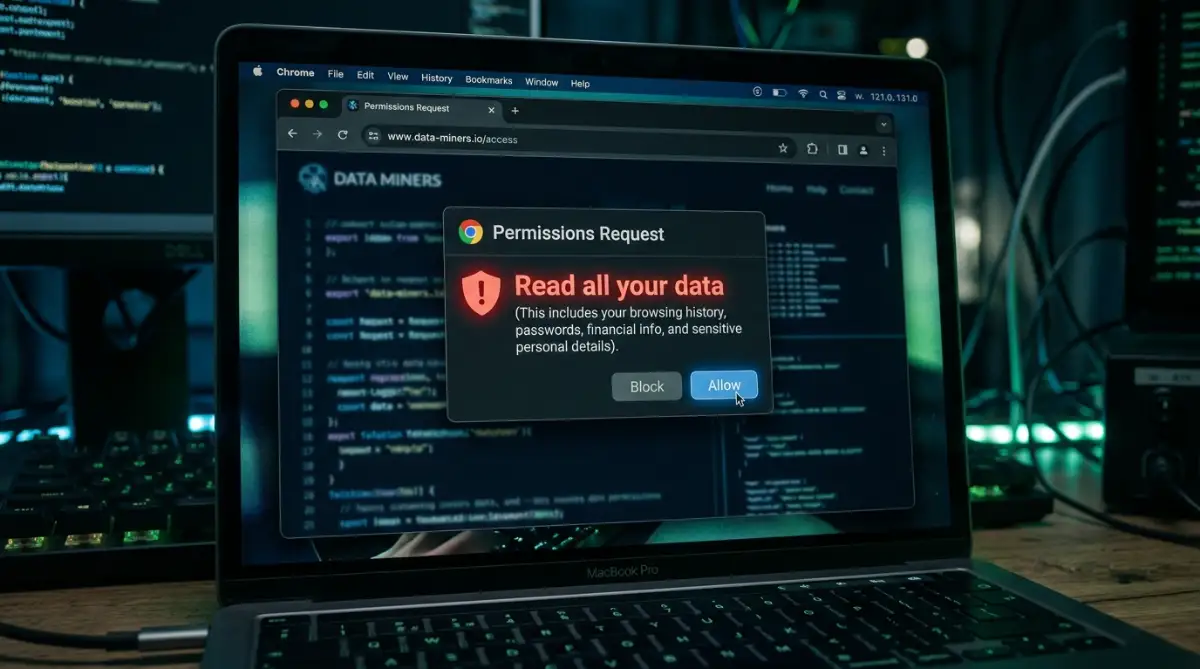
"Here is a bold introductory text you can use to grab attention before watching the video below. It perfectly explains how easy it is to manage your permissions without breaking a sweat!"
When you see the phrase "Read and change all your data on all websites," you must pause. This specific permission gives the tool total power to see everything you type. It can see your bank balances, your private messages, and your login details.
Only grant this massive level of access to highly trusted, universally recognized tools like premium password managers. For everything else, look for tools that offer "on-click" permissions. This means the tool only activates and sees your data when you specifically click its icon.
I remember realizing how careless I was when I found a simple PDF converter I had installed. I realized it had full access to read my banking website data for over six months! I instantly deleted it and promised myself I would never skip reading the permissions screen again.
Verifying the True Identity of the Developer
One of the sneakiest tricks in the software world happens when a good tool goes bad. An independent developer might create a wonderful, safe tool that millions of people love. Then, a shady data-broker company comes along and offers the developer a massive amount of money to buy it.
Once the shady company takes over, they push a silent update. Suddenly, your favorite safe tool is aggressively tracking your search history to sell targeted ads. To prevent this, you need to check who currently owns the tools you rely on.
Click on the details of your add-on and look at the "Offered by" section. Click the developer's name to see their website. Does the website look like a professional business? Do they have a clear, easy-to-read privacy policy?
If the developer link leads to a broken webpage or a strange blog with no contact information, delete the tool right away. Trustworthy developers are always transparent about who they are and how they make their money.
My 30-Second Developer Safety Checklist:
Before you keep any tool, ask yourself these three quick questions:
- Does the developer have a real, working website (not just a blank page)?
- Can you find an actual contact email or support page?
- Is their privacy policy written in plain English, clearly stating they do not sell user data?
- If you answer "No" to any of these, hit the delete button right away.
Setting Up a Solid Defense System
You cannot just clean your browser once and forget about it forever. Digital safety requires a consistent, proactive approach. You need to build a simple habit to ensure your workspace remains clean and secure over time.
Pick one day out of the month to do a quick five-minute audit. I usually do this on the first Sunday of every month. I open my browser, glance at my list of active tools, and remove anything I haven't used recently.
Here is a quick breakdown of what is generally acceptable versus what should make you suspicious:
By keeping a close eye on these requests, you take the power away from malicious developers. You become the active guard of your own personal data.
The Danger of Multiple Browsing Profiles
Many people share their computers with family members or use the same machine for work and personal tasks. To keep things separated, they create different user profiles within the browser. While this is great for organization, it can create a massive blind spot for security.
If your child installs a highly questionable gaming extension on their profile, it can sometimes affect the entire browser's performance. The background processes might still consume your computer's memory, slowing down your important work tasks.
You must audit every single profile on your machine. Do not just check your primary work account. Log into the family profile, the guest profile, and the entertainment profile. Ensure that the same strict safety rules apply across the entire software environment.
Dispelling the Biggest Security Myths
There is a lot of bad advice floating around the internet regarding software safety. One of the biggest myths is that using "Incognito" or "Private" mode protects you from shady add-ons. This is completely false.
While private mode does not save your history locally, many extensions can still run in the background. If you manually allow an extension to operate in incognito mode, it can still track every single thing you do. Private mode hides your activity from people sitting next to you, not from the software running inside your machine.
Another common myth is that antivirus software will automatically catch bad browser tools. Most traditional antivirus programs focus on protecting your hard drive from direct downloads. They often ignore the tiny scripts running specifically inside your web browser environment.
You cannot rely entirely on automated defense systems to keep you safe. Human intuition and regular manual checks are your best weapons against these silent threats.
Understanding the Impact on Hardware Performance
Security is not the only thing at risk when you hoard unnecessary web tools. Your computer's physical hardware takes a massive beating as well. Every single active add-on requires a slice of your computer's memory (RAM) and processing power (CPU) to function.

If you have fifteen tools running at the same time, your browser is working incredibly hard just to keep them alive. This is exactly why your laptop fan sounds like a jet engine when you open a new tab. This constant heavy load drains your battery much faster and can even shorten the overall lifespan of your machine.
When you perform a thorough audit and delete unused tools, you are doing more than just protecting your privacy. You are literally giving your computer room to breathe. You will immediately notice faster loading times, smoother scrolling, and a much quieter machine.
A clean, minimalist digital workspace is always faster and far more secure. Treat your browser like a physical desk. Keep only the essential tools you need to get your work done, and lock everything else away. By applying these exact steps today, you guarantee a much safer, faster, and stress-free internet experience.
Next-Level Strategies to Keep Your Browser Clean
Once you have done the basic cleanup, you might feel a sudden sense of relief. Your computer probably runs faster, and your mind is definitely at ease. But digital safety is not a one-time event; it is an ongoing process that requires a bit of smart planning.
I used to clean up my browser, feel great about it, and then completely forget to check it again for months. Slowly, new tools would creep back into my workspace. Before I knew it, I was back to square one, dealing with a sluggish computer and privacy concerns.
To break that cycle, you need to set up a proactive defense system. You do not have to become a paranoid security expert to stay safe. You just need to implement a few incredibly simple habits that work silently in the background of your daily life. Let us look at how you can lock down your browser permanently without adding stress to your day.
Use Dedicated Workspaces for Different Tasks
One of the smartest things you can do is physically separate your digital activities. Do not use the exact same browser profile to check your private banking details and download questionable video game mods. Mixing highly sensitive data with unverified software is a recipe for disaster.
Instead, create two completely different browser environments. Set up a "Clean Profile" that has absolutely zero extensions installed. Use this strict environment specifically for paying bills, checking personal emails, and handling medical records. If there are no add-ons installed, there is nothing there to spy on your sensitive data.
Then, create a separate "General Browsing" profile. This is where you can keep your trusted ad-blockers, grammar checkers, and reading tools. By building this clear wall between your private data and your casual browsing, you instantly eliminate the majority of everyday security risks.
The Power of Temporary Access
We often install tools for a single, specific task and then forget they exist. Maybe you need to edit a PDF document or capture a full-page screenshot just for today. You do not need that tool running silently in the background for the rest of your life.
Many modern web browsers now offer a brilliant feature called temporary permissions. When a tool asks to read your data, you can often select an option that says "Allow only this time." Once you close the tab or finish the task, the permission is automatically revoked.
If your current browser does not offer this specific feature, you have to be your own guard. Get into the habit of immediately disabling an add-on the moment you finish using it. You do not always have to delete it entirely; just toggle the switch to the "off" position until you need it again next month.
I learned this the hard way when I noticed a color-picking tool I used for one single design project was active for three straight months. I immediately started turning off everything I wasn't actively using, and my laptop battery life instantly improved.
Look for Open-Source Alternatives
When you are looking for a new tool to add to your workspace, always try to find an open-source version first. Open-source simply means that the code behind the software is completely public. Anyone in the world can look at how the tool is built and verify exactly what it is doing behind the scenes.
Because the code is fully visible, it is incredibly difficult for shady developers to hide tracking software inside an open-source project. Independent security researchers frequently review these tools and will loudly sound the alarm if they find anything malicious.
You can usually find fantastic open-source alternatives for almost every basic tool you need. Whether you need a password manager, an ad-blocker, or a simple calculator, open-source options are generally much safer than closed, proprietary tools built by unknown companies. You can often check community-driven security databases like CVE (Common Vulnerabilities and Exposures) to see if a tool you use has any known public issues.
Keeping Your Defense System Updated
Software is never completely perfect, and security flaws are discovered all the time. Good developers are constantly pushing out updates to patch these holes and keep bad actors out. If you ignore these updates, you are leaving your digital front door wide open.
Most browsers update their add-ons automatically in the background, but this system can occasionally fail. Make it a habit to manually check for updates at least once a month. You can usually find a simple "Update All" button hidden inside your browser's extension management page.
If you notice a tool has not been updated by its developer in over a year, you should seriously consider removing it. An abandoned piece of software is highly vulnerable to new types of online attacks. It is always safer to switch to a tool that is actively maintained by a responsive development team.
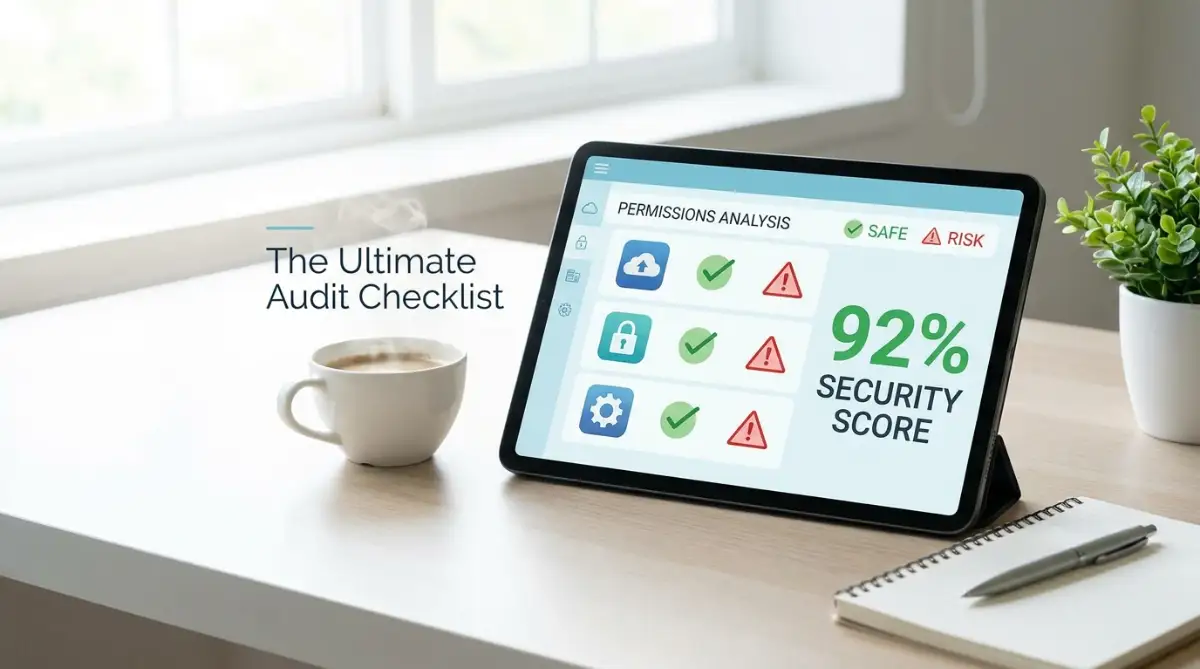
The Hidden Traps That Keep Us Vulnerable
Even when we try our absolute best to stay secure, it is incredibly easy to fall back into bad habits. The internet is designed to make us click quickly and think later. We get so caught up in rushing through our daily tasks that we completely ignore the glaring warning signs right in front of us.
When you ignore these subtle red flags, you are not just risking a sluggish computer. You are actively handing over your personal digital footprint to completely unknown third parties. Let us discuss the specific behaviors that consistently put average internet users in serious danger.
Falling for the "Fake Update" Scam
This is arguably one of the most effective tricks malicious websites use today. You might be trying to watch a video or download a file when a bright, urgent pop-up appears on your screen. It loudly claims that your media player is out of date or that you need to install a special tool to view the content.
The moment you click that fake update button, you are usually downloading a malicious browser add-on. These fake tools are often designed to hijack your search engine, redirect your web traffic, or silently monitor everything you type.
Never, ever install a browser tool from a random pop-up or a third-party website. Always go directly to your official browser store (like the Chrome Web Store or Firefox Add-ons page) to search for the tool manually. If a website refuses to let you view their content without forcing a download, immediately close the tab and find that information somewhere else.
Ignoring the Reviews and Ratings
We rely heavily on reviews when we buy a new coffee maker or book a hotel room. But for some reason, we completely ignore reviews when we install software on our computers. We see a tool that claims to solve our problem, and we instantly click install without reading a single word of feedback.
This careless habit is incredibly dangerous. If a legitimate tool is suddenly bought by a shady company and updated with tracking software, the existing user base will notice. They will immediately flood the store page with negative, one-star reviews warning other people.
Before you add anything new to your digital workspace, take a full sixty seconds to read the most recent reviews. If you see multiple people complaining about random pop-ups, slow browser performance, or strange search redirects, run away immediately. Do not ignore the loud warnings from the people who have already been burned.
Relying Too Heavily on "Free" Security Tools
There is a very old, very accurate saying in the digital world: if you are not paying for the product, you are the product. Building and maintaining high-quality software costs a massive amount of money. If a company is offering you a highly complex security tool completely for free, you must ask yourself how they are keeping the lights on.
Many "free" VPNs and antivirus add-ons are actually massive data-collection operations. They offer you a false sense of security while secretly logging your entire browsing history and selling it to the highest bidder. You might think you are protecting yourself, but you are actually installing a highly efficient spy.
When it comes to serious digital protection, especially regarding passwords and personal privacy, you generally get what you pay for. It is always better to pay a few dollars a month for a highly reputable, independently audited security service than to trust your sensitive data to a completely unknown free tool.
Taking Back Control of Your Digital Life
We have covered a massive amount of ground today, but the core message is incredibly simple. Your web browser is the most important tool on your computer. It is the direct gateway to your bank accounts, your private conversations, and your personal identity. You simply cannot afford to leave the doors completely unlocked.
By actively monitoring what runs inside your digital workspace, you instantly eliminate the most common security threats. You do not need to be a coding genius to protect yourself; you just need to be slightly more observant than you were yesterday. Read the fine print, question sudden access requests, and regularly sweep away the digital clutter you no longer need.
I finally feel like I own my computer again, rather than feeling like my computer is quietly working against me. If you just take five minutes tonight to clean out those old, unused tools, I promise you will feel an immediate sense of relief too!
Frequently Asked Questions About Safe Browsing
Can my regular antivirus program detect bad browser tools?
Usually, no. Traditional antivirus software is mostly focused on protecting your physical hard drive from direct, malicious downloads. Many bad browser tools operate entirely within the web environment, making them nearly invisible to standard desktop security scanners. You have to manually review your active tools to catch these hidden issues.
Is it safe to use tools that claim to speed up my internet?
Almost all of these "speed booster" tools are completely fake and are often designed to steal your personal data. Your internet speed is controlled entirely by your physical service provider and your home network equipment. No simple web tool can magically bypass those physical limits to make your connection faster.
How do I know if a tool is secretly slowing down my computer?
If your computer fan constantly runs loud or your web pages take forever to load, you might have too many tools running in the background. You can open your browser's built-in task manager to see exactly how much memory each active tool is currently using. If one specific tool is draining massive amounts of power, delete it immediately.
What should I do if I accidentally installed a malicious tool?
Do not panic. First, immediately go to your settings and completely remove the questionable tool. After it is gone, clear all of your recent browser cache and website cookies to remove any lingering tracking data. Finally, restart your entire computer to ensure all background processes are completely shut down.
Disclaimer: The information provided in this article is for educational and informational purposes only. It does not constitute professional cybersecurity or IT advice. Always consult with a certified tech professional before making significant changes to your software or network security settings.