The Hidden Frustration Behind a Lagging Machine
Ever fired up your laptop just to check one quick email, only to sit there staring at a spinning wheel for ten minutes? It makes you want to throw the whole device out the window. Before you spend a bunch of money on repair shop fees or a brand new machine, let me show you what is actually happening behind your screen. It is almost never a broken part—usually, it is just invisible software eating up all your memory.
This exact terrifying scenario happens to thousands of innocent users every single day. You sit down with your morning coffee, ready to finish a quick task, and suddenly your system starts crawling. You click a simple application, and it takes an agonizingly long time to open.
It feels incredibly frustrating when you spend good money on a powerful device, only to have it act like an outdated machine. The constant lagging completely ruins your focus and destroys your daily productivity. People easily start blaming themselves, thinking they clicked a bad internet link or somehow broke the internal hardware.
Many people just accept this sluggish performance as a normal part of owning a computer. They think machines just naturally get slower over a short period of time. However, this is a complete misconception that costs people heavily in lost time and unnecessary repair bills.
The truth is much simpler and often completely hidden from your plain sight. There are invisible programs operating behind your back, silently stealing the processing power you need to do your actual work.
Fast Fixes You Will Learn in This Post:
- Identify hidden resource thieves: Find out exactly which invisible apps are eating up your memory.
- Stop the startup jam: Stop annoying programs from automatically launching when you turn on your machine.
- Clear browser clutter: Learn why tiny browser extensions might be the real reason your internet feels so slow.
- Avoid the "booster" trap: See why fake PC cleaner software actually does more harm than good.
Unmasking the Invisible Thieves Stealing Your Performance
To truly fix a slow computer, you need to understand what is happening behind the digital curtain. Think of your operating system as a massive restaurant kitchen during the dinner rush. Your main tasks, like browsing the web or typing a document, are the primary chefs cooking the meals.
However, in the back of the kitchen, there are dozens of invisible helpers doing side tasks. Some are washing dishes, some are organizing the pantry, and others are simply standing around doing nothing but taking up valuable space. These helpers are your background processes.
While some of these invisible tasks are completely necessary for the system to run, many of them are simply stealing your resources. They consume your Random Access Memory (RAM) and force your processor (CPU) to work overtime for absolutely no good reason.
This unnecessary workload creates excess heat inside your machine. When your computer gets too hot, it automatically slows itself down to prevent catching on fire. This safety feature directly causes the awful lagging you experience during your important work sessions.
Bloatware and Pre-installed Junk You Never Asked For
When you buy a brand new computer, you might think you are getting a clean slate. Sadly, this is almost never the actual case. Most manufacturers get paid to pre-install dozens of trial programs, games, and helper tools before the computer even reaches the store.
These extra programs are commonly known in the tech world as bloatware. You might never open these specific applications, but they still run silently from the moment you turn on the power button. They constantly check the internet for updates or run tracking services to see if you will eventually buy their premium versions.
Over time, these unused programs pile up in your system memory. They act like heavy rocks placed inside a backpack that your processor has to carry around all day long. Removing them is one of the easiest ways to breathe fresh life into an old, struggling machine.
Quick Guide: What to Keep vs. What to Delete
If you are staring at your app list and feeling lost, here is a simple cheat sheet to help you out:
| App Type | Should I keep it? | What does it do? |
| :--- | :--- | :--- |
| Pre-installed Games (Candy Crush, etc.) | Delete | Wastes storage and tracks your data for ads. |
| Manufacturer Updaters (HP Support, Dell Assist) | Keep (Usually) | Helps download specific driver updates for your exact laptop. |
| Third-Party Antivirus Trials (McAfee, Norton 30-day) | Delete | Slows everything down. Just stick to the free built-in system security. |
| Bloated Media Players | Delete | You do not need heavy software just to play a simple video anymore. |
The Endless Cycle of Cloud Syncing
We all love the convenience of having our photos and documents saved to the cloud. Services that back up your files automatically are incredibly helpful for keeping your data safe. However, they are also massive resource hogs if not managed properly.
These syncing programs constantly scan your entire hard drive looking for new files to upload. If you have thousands of photos or heavy video files, the syncing app will aggressively use your internet bandwidth and your computer's processing power.
You might be trying to watch a high-quality video, but your system is secretly prioritizing a file backup in the background. This conflict creates strange stuttering issues and sudden drops in performance that seem to come out of nowhere.
Watch This Expert Explanation Below
If you want to visually understand exactly how these hidden programs secretly start up with your computer, take a quick look at this incredibly helpful breakdown.
Realizing the Truth About Startup Apps
Pro Tip: I used to think my computer was just inherently slow at waking up in the morning. My biggest realization came when I discovered the startup tab in my system settings; I had 15 different applications fighting to launch at the exact same time every single day. Simply turning off the automatic start switch for apps I rarely use made my computer boot up instantly.
When you install a new piece of software, it often assumes it is the most important tool in your life. It will secretly add itself to your startup list without asking for your clear permission.
Programs like music players, gaming launchers, and chat applications love to do this. They want to be ready the exact second you might need them. But if you have twenty different programs all trying to be "ready" at once, your computer will choke under the immense pressure.
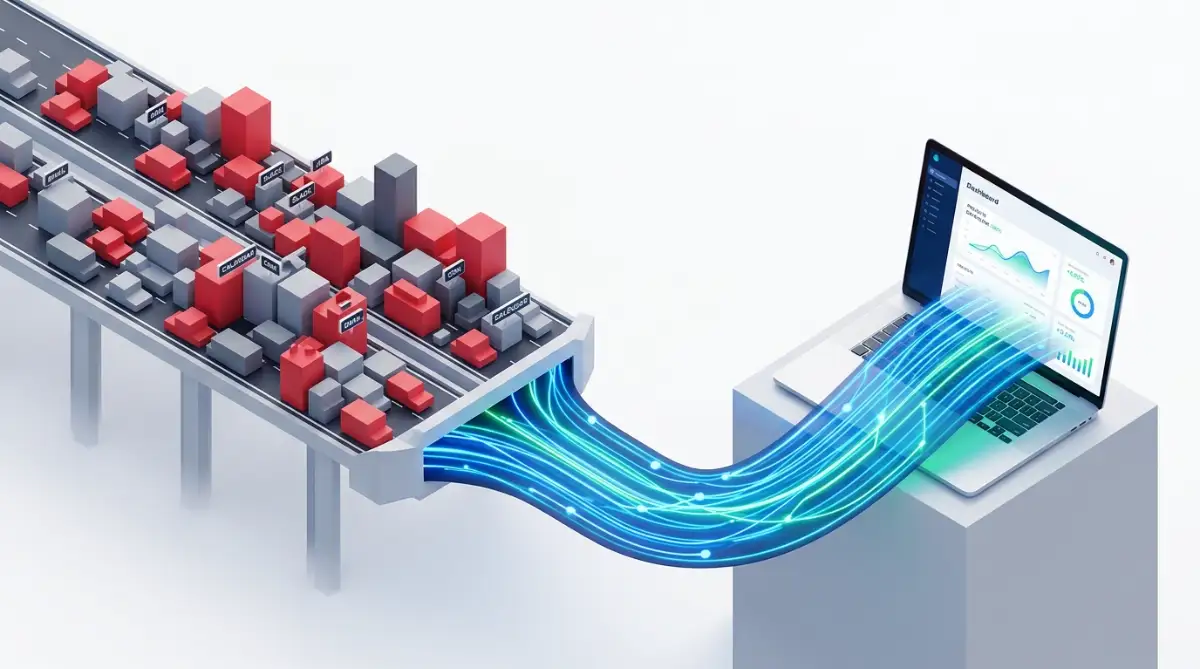
Taking control of your startup list is like clearing a traffic jam on a busy highway. Once the unnecessary cars are moved out of the way, your important traffic can flow smoothly and quickly.
Hardware Acceleration Conflicts That Slow You Down
Many modern applications try to be clever by using a feature called hardware acceleration. This means the program tries to borrow power directly from your graphics card to make animations look smoother.
While this sounds like a great idea on paper, it often backfires spectacularly in reality. If you have a web browser, a chat app, and a video player all trying to use hardware acceleration at the exact same time, they will clash.
This clashing leads to bizarre screen flickering, random app crashes, and massive spikes in background energy usage. Turning off this feature in programs that do not strictly need it can instantly stabilize a shaky operating system.
The Heavy Toll of Browser Extensions
Your web browser is likely the application you keep open the longest during your daily routine. To make browsing better, you probably installed a few helpful extensions like ad blockers, grammar checkers, or coupon finders.
What most people do not realize is that every single extension runs as its own separate background process. If you have fifteen extensions installed, you basically have fifteen tiny invisible programs running alongside your main browser.
Even when you are just reading a simple text article, these extensions are constantly scanning the page, talking to external servers, and eating up your available RAM. Removing old extensions you no longer use is a surprisingly effective way to speed up your daily internet experience.
The 10-Second Browser Health Check
Are hidden extensions slowing down your internet? Try this quick test right now:
- Open your browser in "Incognito" or "Private" mode (this temporarily turns off most extensions).
- Load a website you visit every day.
- Does the page load much faster than normal?
- If you answered yes, you definitely have too many hidden extensions running in the background. Go to your browser settings and turn off everything you do not use on a daily basis.
Myth vs Reality: Clearing Up System Misconceptions
There is a lot of bad advice floating around the internet regarding computer performance. Let us clear up some common misunderstandings right now.
Myth: You should force-close every single background app constantly to save battery.
Reality: Forcing everything to close can actually do more harm than good. Your operating system is generally smart enough to put most idle apps to sleep. Constantly forcing them closed makes the processor work twice as hard to reopen them when they are genuinely needed.
Myth: Using third-party "PC Booster" software will fix your lagging issues instantly.
Reality: Ironically, most heavily advertised PC booster programs are actually bloatware themselves. They run heavy animated graphics in the background and drain the exact resources they promise to save. The best tools are already built directly into your system settings.
Myth: A slow computer always means you need to buy more expensive RAM.
Reality: While adding memory helps, it is like buying a bigger trash can instead of just taking out the garbage. If you clean up the background processes first, you will likely find your current RAM is more than enough for your daily needs.
How Telemetry Services Secretly Drain Your Battery
Both major operating system creators and third-party software developers love data. They constantly want to know how you use their products, what buttons you click, and when the software experiences an error.
To gather this information, they use something called telemetry services. These are completely invisible background tasks that gather your usage statistics and silently upload them to corporate servers.
While this data helps companies fix bugs, it actively drains your laptop battery and consumes your processing power. You are basically paying for the electricity to help large corporations conduct their market research.
Most systems allow you to turn off optional diagnostic data in the privacy settings. Disabling this constant communication chatter can result in noticeably longer battery life and a much cooler running machine.
Identifying the Heavy Lifters in Your System
You do not need to be a tech wizard to figure out what is slowing down your machine. Every modern computer comes with a built-in diagnostic screen. Depending on your machine, this is usually called the Task Manager or the Activity Monitor.
Opening this tool provides a direct window into the hidden world of your operating system. It shows a simple, organized list of exactly which programs are using your CPU, your memory, and your network connection.
At first glance, the list might look intimidating because it contains dozens of weird system names. However, you do not need to understand every single line. You simply need to look for the clearly named applications sitting at the very top of the list, showing high percentage numbers.
If you see a video calling app using fifty percent of your processor while you are not even on a call, you instantly know you have found a major problem. From there, you can choose to properly exit the application and instantly reclaim your stolen processing power.
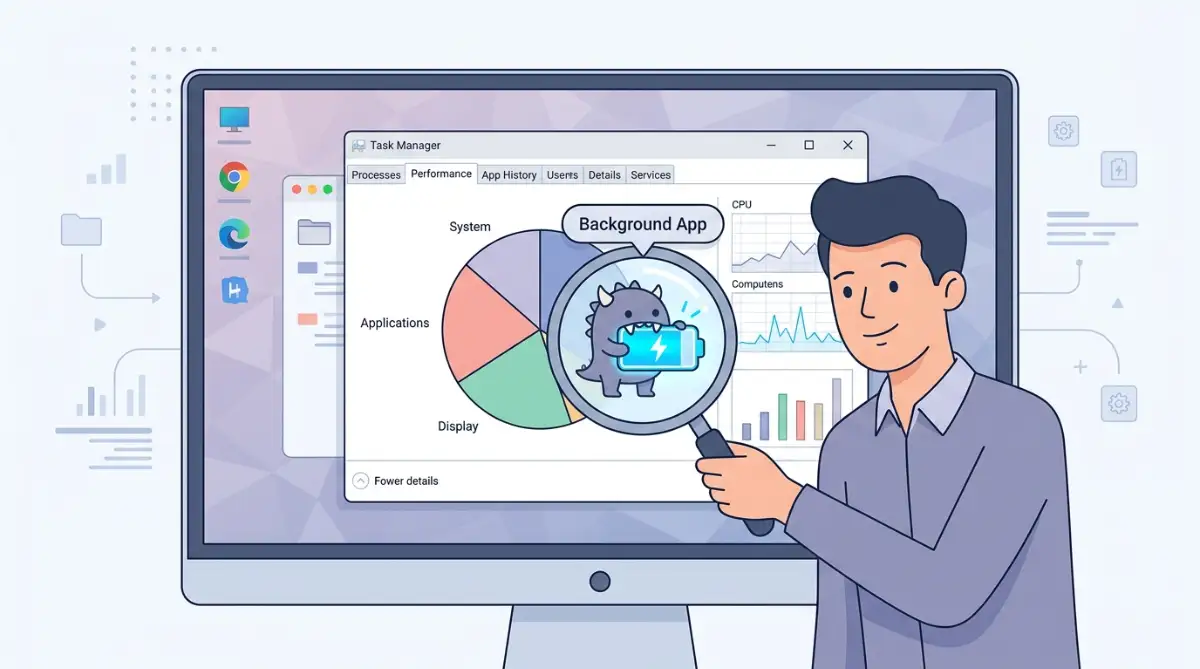
Understanding this hidden layer of your computer changes everything. You stop being a passive victim of random lagging and become an active manager of your own digital workspace.
Mastering the Hidden Layers of Your Operating System
You have already learned how to spot the obvious resource thieves hiding in plain sight. Now, we are going to look at the deeper, hidden layers of your machine that most everyday users never even know exist.
I want to share a few pro-level strategies that completely changed how my own computer handles heavy workloads. These are not basic quick fixes; these are permanent adjustments that tell your system exactly how to behave.
Taking Control of Invisible Background Services
There is a huge difference between standard background apps and actual system services. While an app is something you usually interact with, a service runs completely silently in the deepest background to keep specific hardware or software running.
A perfect example is printer services. You might have connected your laptop to a hotel printer just one single time during a vacation. From that day forward, a background service constantly runs and scans the network looking for that exact printer.
This endless, invisible searching drains your battery and wastes processing power. You can easily find these by searching for the "Services" menu in your system search bar.
When you open this menu, you will see a massive list of commands. Taking the time to right-click and disable services for hardware you no longer own is incredibly satisfying. Just be careful to only disable services you clearly recognize, like old gaming anti-cheat software or abandoned update helpers.
Stop Using Your Hard Drive as Fake Memory
Here is a technical secret that most people completely miss when diagnosing a slow computer. When your machine runs out of physical RAM, it panics and starts using your permanent hard drive as a temporary overflow area.
This process is known as using a paging file or virtual memory. The major problem here is that hard drives are significantly slower than actual RAM chips. If your hard drive is almost totally full, this overflow process fails miserably and freezes your entire screen.
You need to maintain at least ten to fifteen percent of free space on your main drive at all times. If you constantly work with massive files, learning how to optimize local storage for massive open source AI models and heavy media can save your computer from crashing.
Clear out your downloads folder, empty your digital trash can, and move old videos to an external drive. Giving your operating system enough room to "breathe" will instantly stop those random, five-second stuttering moments.
Turning Off Pointless Visual Eye Candy
Modern operating systems love to look pretty. They use transparent windows, smooth fading animations, and soft drop shadows under your mouse cursor to look premium and modern.
While these visual effects look incredibly nice, they require constant calculations from your graphics processor. If you are using an older laptop or a basic office computer, these animations are actively hurting your daily productivity.
You can easily find the performance options in your system settings and choose to disable unnecessary visual effects. Turning off window animations makes your computer feel incredibly snappy because applications will open instantly without waiting for a fading effect to finish.
If you prefer a fast machine over a pretty machine, this is the single best trade-off you can make today.
Managing Hidden Telemetry and Modern AI Processes
Recently, big tech companies have started integrating smart features directly into the core system. You might notice new background tasks related to predictive text, search indexing, or user habit tracking.
While it is fascinating to see what artificial general intelligence really means for you in the grand scheme of technology, you might not want these heavy processes running on your personal office laptop.
These smart features constantly index your files and analyze your typing habits in the background. Going into your privacy settings and turning off optional diagnostic data, tailored experiences, and background AI indexing will free up a massive amount of hidden memory.
If you want to read deeper into how operating systems handle memory allocation scientifically, you can check out this excellent guide on memory management principles from the University of Wisconsin. It breaks down the exact mechanics of how data is stored and moved behind the scenes.
Reconfiguring Your Power Plan Settings
By default, almost every single computer ships with a "Balanced" power profile. Manufacturers do this specifically to meet global energy regulations and to make the battery life look better on the retail box.
However, a balanced profile actively restricts your processor from using its full potential. It constantly ramps your processing speed up and down depending on what you are doing.
This constant shifting creates noticeable lag when you suddenly open a heavy program. If you are plugged directly into a wall outlet, you should definitely switch your power setting to "High Performance."
This simple change tells your computer to stop worrying about saving electricity and to give you the maximum speed possible. You will notice an immediate difference in how quickly your web pages load and your programs respond.
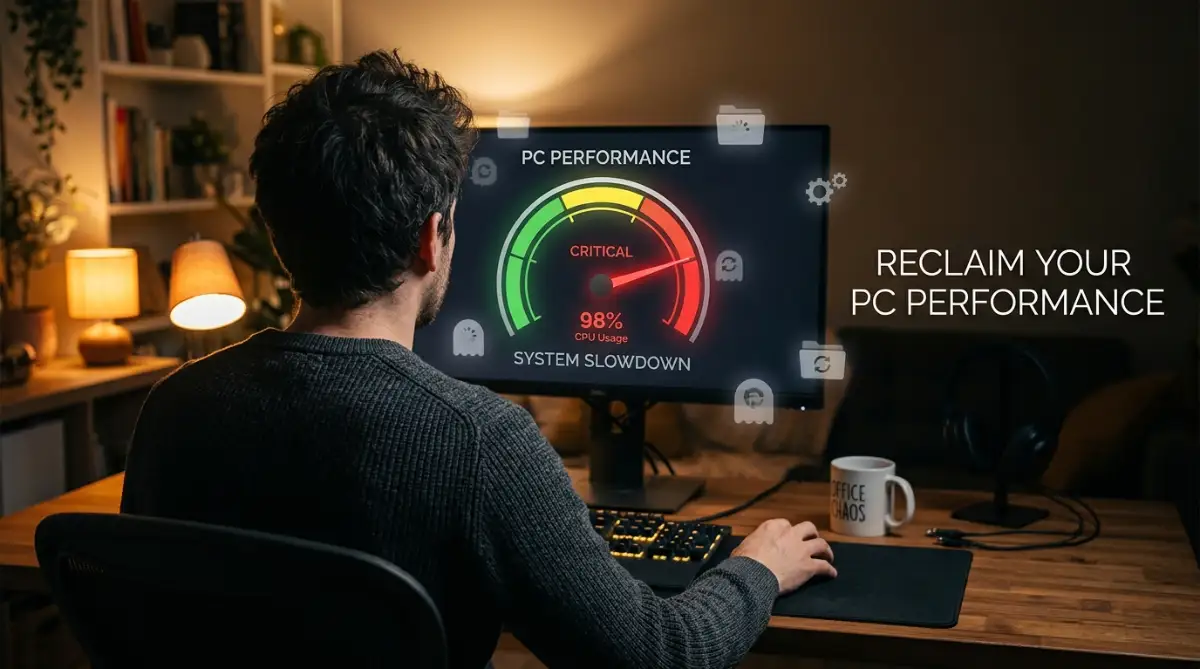
The Dangerous Traps That Will Ruin Your System
When people get totally fed up with a lagging computer, they often panic and start trying every single trick they find on random internet forums. Unfortunately, acting out of frustration usually leads to making some terrible decisions.
Trying to force a quick fix onto a complex system issue often creates entirely new problems. It is very similar to home maintenance; applying heavy structural changes without knowing the basics is a recipe for disaster, just like why installing DIY solar on an old roof can cost you thousands.
Let us walk through the most common and dangerous mistakes people make when trying to speed up their machines. Avoiding these specific traps will save you from completely breaking your operating system.
The "PC Cleaner" Software Scam
Pro Tip: I completely broke my first college laptop by using a heavily advertised "registry cleaner." I thought I was doing a great job cleaning up junk files, but the software actually deleted core system files, and I had to pay a professional to completely reinstall my entire operating system.
Many third-party booster programs promise to magically fix your slow computer with one simple click. They run flashy scanning animations and show you terrifying red text claiming your system is full of severe errors.
In reality, these programs are often worse than the background apps you are trying to stop. They install their own hidden tracking software and constantly run in the background to show you daily premium upgrade ads.
Modern operating systems are incredibly good at managing their own internal files. You absolutely do not need a third-party application to clean your registry or organize your data. The built-in disk cleanup tools are completely safe, free, and exactly what the manufacturer intended you to use.
For a more detailed look at the risks associated with these fake optimization tools, you can review consumer safety alerts on the National Institute of Standards and Technology (NIST) database, which regularly tracks deceptive software practices.
The Double Antivirus Disaster
A very common logic trap people fall into is thinking that if one security program is good, two security programs must be completely amazing. This is actually one of the absolute worst things you can do to your computer's performance.
Imagine two very aggressive security guards standing at the exact same front door. Every time a new person tries to enter, both guards grab the person, pull them in opposite directions, and fight over who gets to check the ID card first.
This is exactly what happens when you install two different antivirus programs. They both try to scan every single file you click simultaneously. This creates a massive system deadlock that will freeze your computer entirely.
Just pick one highly reputable security defender and stick with it. The built-in system security that comes with modern machines is actually incredibly powerful and runs much lighter in the background than third-party options.
Blindly Closing Unfamiliar System Tasks
When you first open your system task manager, you will see a very long list of confusing names like "svchost.exe" or "system idle process." It is incredibly tempting to just start right-clicking and closing anything you do not personally recognize.
Please never do this. Many of these confusing names are actual critical system pillars keeping your computer alive.
If you force-close the wrong background task, your internet connection might drop permanently, your audio might stop working, or your screen might just instantly turn completely black.
Only close applications that you clearly recognize by name, like a specific web browser, a game console launcher, or a music player. If you are unsure about a strange process name, take five seconds to search the name online before you decide to kill it.
Ignoring Crucial System Updates
It is a very common belief that updating your system will make it run slower because the new software is heavier. Because of this fear, many people actively block their system from installing new patches for several months.
This is a massive mistake for your overall performance. System updates are not always just adding new features; they are usually fixing deep bugs that are actively causing your memory to leak.
Software engineers constantly discover new ways programs are accidentally wasting system resources. The updates they push out are specifically designed to patch those resource holes and make your processor run cooler and faster.
For official documentation on how modern software scheduling actually works behind the scenes, you can read insights directly from developers on the Microsoft Learn platform, which completely debunks the myth that all updates slow down your computer.
Delaying these patches means you are forcing your machine to continue struggling with known, easily fixable software errors. Always let your system apply security and optimization patches automatically overnight.
Your Personal Action Plan for a Faster Machine
We have covered a massive amount of ground today, completely exposing the hidden world operating inside your personal computer. You no longer have to sit there quietly accepting a sluggish, freezing machine.
You now understand that unnecessary bloatware, aggressive cloud syncing, and invisible startup applications are the real thieves stealing your digital peace of mind. By actively managing these background tasks, you are taking back total control of your hardware.
Start small today. Open your startup menu and disable just three applications that you do not need running right away. Then, check your system tray near the clock and close out those sneaky chat apps and game launchers hiding in the background.
For more daily guides and completely free strategies to make your digital life easier, you can always explore the main resources on our homepage, where we break down complex tech issues into simple steps.
Maintaining a fast computer is not about being a highly trained programmer. It is simply about knowing where to look and having the confidence to turn off the extra weight your machine is carrying.
I really hope these practical strategies help you finally get your computer running exactly the way it should. Seeing my own laptop instantly snap back to life after clearing out my background tasks felt amazing, and I genuinely want you to experience that exact same relief today!
Common Questions About Managing System Resources
Why is my memory usage high when nothing is open?
Even if you do not have any active windows open, your operating system is still running dozens of invisible background tasks. These include automatic virus scans, network connection monitors, and cloud file syncing services that constantly use your available memory to stay ready.
Will stopping background apps delete my personal files?
No, stopping a background app is completely safe for your data. It simply tells the program to stop using your processor temporarily and go to sleep. Your saved documents, photos, and personal settings remain entirely untouched and safe on your hard drive.
How often should I check my system background processes?
You do not need to obsessively monitor your background tasks every single day. A quick five-minute check once a month is usually perfectly fine to ensure no strange new programs have secretly added themselves to your automatic startup list.
Does leaving my computer on sleep mode cause lag?
Yes, constantly using sleep mode instead of a full shutdown can eventually cause performance issues. When a computer stays awake for weeks, temporary background errors pile up in the memory. Restarting your computer completely once a week clears out this hidden junk naturally.
Is it normal for web browsers to have so many background processes?
Yes, this is actually by design for security and stability reasons. Modern web browsers run every single open tab and installed extension as its own separate process. This ensures that if one specific tab crashes, your entire browser does not close down completely.
Disclaimer: The information provided in this article is for educational and informational purposes only. Modifying advanced system settings, registry files, or background services can cause unexpected issues if not done carefully. Always ensure you have a complete backup of your important files before making significant changes to your operating system. We are not responsible for any data loss or hardware malfunction that may occur from applying these general tech tips.