
The Frustrating Reality of the "Disk Full" Error
Have you ever waited three hours for a massive AI model to download, only to get slammed with a glaring red "Disk Full" warning the second you try to run it? Yeah, it sucks. Managing storage for local AI tools feels less like actual work and more like a never-ending game of digital Tetris. You delete old files, move folders around, and pray your computer doesn't freeze. I have been there, and I can tell you that fixing this issue doesn't require a massive budget. You just need a better system for handling your heavy data.
My heart instantly sank as I realized my entire operating system was choking because the AI files had eaten up every single megabyte of my free space. I had to frantically delete personal photos, old client projects, and software I actually needed, just to get my machine breathing again. This is the exact moment I realized that running artificial intelligence on your own hardware is not just about having a powerful graphics card. It is mostly a quiet, stressful battle against your own hard drive capacity.
Ordinary creators and developers face this exact nightmare almost every single day. You discover an amazing new open-source tool, you try to bring it into your daily workflow, and suddenly your computer turns into a sluggish, unresponsive brick. The anxiety of constantly checking your remaining disk space takes away all the joy of experimenting with these amazing tools.
Quick Fixes for the "Disk Full" Headache:
- Stop Hoarding Raw Files: Always download compressed GGUF or AWQ formats to save up to 70% of your disk space.
- Clear Hidden Caches: AI software secretly stores massive temporary files. Empty your cache folders every single week.
- Never Use USB 2.0: Running active tasks from cheap external drives will freeze your PC. Only use high-speed NVMe enclosures for active work.
- Protect the 15% Rule: Never fill your primary operating system drive past 85% capacity, or your entire computer will crash.
The Blueprint for Smart Hardware Management
If you are dealing with constant storage anxiety, you are definitely not alone in this struggle. Running heavy systems locally requires a completely different approach to how we treat our hard drives. Let us look at some highly practical, science-backed methods to reclaim your hardware limits.
Rethink Your Drive Hierarchy
Most people make the simple mistake of dumping everything onto their primary operating system drive. This creates a massive bottleneck. When an open-source brain is actively thinking, it is constantly moving massive blocks of data back and forth from your drive to your system memory.
If this data traffic happens on the exact same drive that runs your web browser, background apps, and operating system, everything slows to a crawl. You need to physically separate your storage layers to keep things moving smoothly.
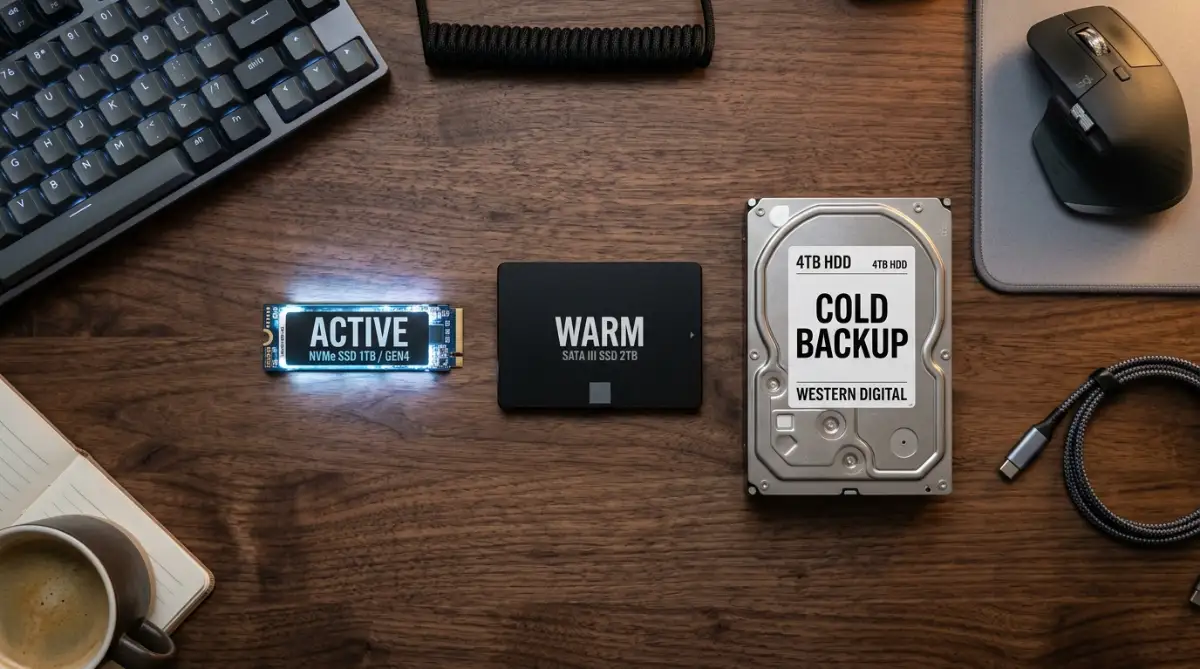
Think of your storage hardware like a physical kitchen setup. Your primary NVMe drive is your main cutting board. This is where active work happens, so you only put the specific model you are using right now on this hyper-fast drive.
Then, you need a secondary SATA SSD. This acts as your kitchen pantry. You keep your alternative models, testing files, and secondary setups here. They are relatively quick to grab, but they do not crowd your main workspace. Finally, you should have a massive, traditional mechanical hard drive acting as your deep freeze. You store all your original downloads, backup copies, and raw data sets here.
By physically moving files across these three tiers, you protect your main system drive from burning out.
The Magic of Model Quantization
You do not always need to download the heaviest, most uncompressed version of a file to get incredible results. One of the smartest ways to save local disk space is by understanding the science of quantization.
In simple terms, quantization is like taking a highly detailed, extremely heavy academic textbook and summarizing it into a lightweight, easy-to-read paperback. The core intelligence and the main facts remain exactly the same, but the physical weight of the book drops by seventy percent.
When you download open-source files, look specifically for formats ending in GGUF or AWQ. These formats have been mathematically compressed by experts to use significantly less disk space.
Instead of a file taking up 40 gigabytes of your precious storage, a quantized version might only take up 8 gigabytes. The drop in actual performance is mostly unnoticeable to the human eye, but the relief on your hardware is massive. This one single habit completely changed how I manage my local setups.
Real-World Size Comparison (Raw vs Quantized):
If you still aren't sure how much space you can save, look at this quick comparison of a standard 7-Billion parameter AI model:
- Raw Format (Uncompressed): 14 GB to 16 GB (Will melt your RAM)
- 8-bit Quantized (GGUF): ~7.5 GB (Great balance of smarts and speed)
- 4-bit Quantized (GGUF): ~4.1 GB (Perfect for budget laptops)
- As you can see, dropping down to a 4-bit format saves you nearly 12 gigabytes per file. If you test ten different models a month, that is over 100 gigabytes of saved space!
Want to see exactly how these compressed formats compare on regular consumer hardware? Check out this incredibly detailed breakdown that shows the real-world speed differences.
Aggressive Cache File Eviction
There is a silent thief hiding deep inside your computer right now. When you run local setups, the system creates temporary memory files called caches. These caches are designed to help things load faster the next time you boot up.
However, these systems are terrible at cleaning up after themselves. If you test five different models in a week, your computer might secretly hold onto massive temporary files for all five of them, even if you deleted the original downloads.
This hidden bloat can easily consume hundreds of gigabytes without you ever knowing. You must develop a strict routine of hunting down and deleting these hidden directories.
On most systems, these hidden folders are buried deep in your user profile settings. Make it a strict Friday afternoon habit to locate your specific software’s cache folder and empty it out completely.
Myth vs Reality: The External Drive Debate
There is a very common rumor floating around online forums right now. Many beginners believe they can just buy a cheap external hard drive, plug it into a standard USB port, and run heavy local systems directly from it.
The Myth: Any external drive will solve your storage problems if it has enough terabytes.
The Reality: The connection speed is far more important than the capacity.
If you try to run a heavy intelligence system over a basic USB 2.0 or 3.0 connection, the data transfer rate becomes a massive brick wall. The software will technically open, but you will wait minutes just to generate a single sentence.
If you absolutely must use external storage for active work, you need a high-end Thunderbolt enclosure paired with a top-tier NVMe stick. Anything less will result in extreme frustration. Save your standard external drives entirely for cold, inactive storage backups.
I actually learned this lesson the hard way. I once bought a massive 8-terabyte external drive on sale, thinking all my space issues were solved forever. I moved my active workspace to it, and my generation speeds dropped from five words a second to one word every ten seconds. I wasted a whole weekend trying to fix software bugs before realizing the physical USB cable was just too slow to handle the heavy data flow. Always check your port speeds before buying external hardware.
Implementing Hard Storage Quotas
Human psychology plays a big role in digital clutter. When we see free space on a drive, our natural instinct is to fill it up with interesting new tools. To stop this cycle, you need to set hard, unbreakable rules for your hardware.
Create a dedicated master folder on your fastest drive called "Active AI Tools." Now, right-click and check the properties of this folder. You must make a personal promise that this specific folder will never exceed 100 gigabytes.
If you want to download a new 20-gigabyte tool, and your folder is currently sitting at 95 gigabytes, you are not allowed to hit download. You must force yourself to delete or move something old to cold storage first.
This forces you to be highly intentional about what you actually need. You stop acting like a digital hoarder and start acting like a professional curator.
Managing Vector Database Bloat
When you start feeding your own personal documents into these local systems, you use a technology called a vector database. This is how the system remembers your specific files.
What most guides fail to mention is how incredibly heavy these memory databases can get. Every time you feed a PDF or a text file into your setup, the system creates a massive mathematical map of those words.
These maps take up incredible amounts of room. If you feed an entire folder of old receipts or meaningless logs into your system, you are permanently burning away your hard drive capacity for zero actual benefit.
Be extremely picky about the personal data you feed into your local setups. Only provide high-value, heavily curated documents.
Before uploading a 500-page document, take five minutes to delete the blank pages, the index, and the irrelevant chapters. Trimming the fat from your input data directly saves massive amounts of space on your hardware.
Hardware Performance Breakdown
To help you visualize how different hardware impacts your daily experience, here is a simple breakdown of storage types and their real-world impact on your workflows.
Understanding this breakdown stops you from wasting money on the wrong hardware. You do not need a massively expensive NVMe drive just to hold backup files, and you definitely cannot rely on a cheap hard drive to do the heavy daily lifting.
Leveraging Symbolic Links for Folder Management
Sometimes, your operating system forces specific software to install right on your main system drive, whether you like it or not. The software aggressively creates default folders in your primary user directory and refuses to let you change the installation path.
When this happens, your main drive fills up instantly. To beat this, you can use a brilliant operating system trick called a symbolic link.
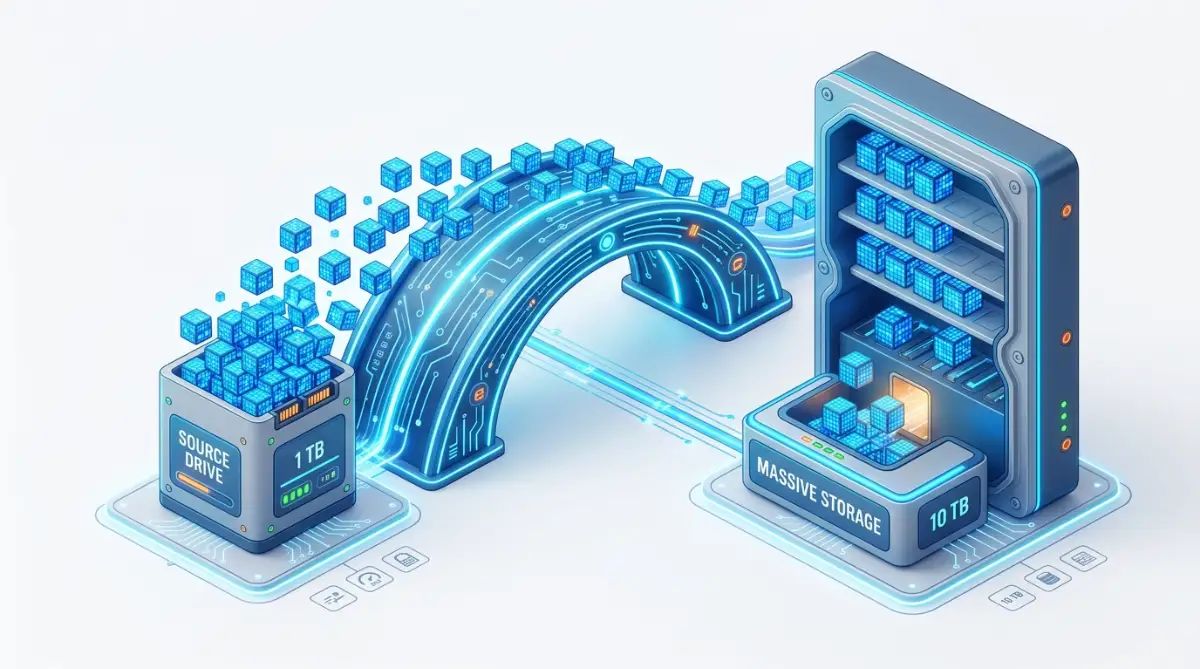
A symbolic link is essentially a highly advanced shortcut. You trick the software into thinking its heavy files are sitting comfortably on your main drive, but you actually push the physical data to a separate, larger drive.
You create an invisible bridge between the two drives. The software happily saves data to the default folder, but the actual weight of that data magically flows across the bridge and lands on your secondary storage. This one trick allows you to bypass stubborn software restrictions and keep your main operating system incredibly lean and fast.
Deep-Level Hardware Tactics You Need to Know
Once you have the basics down, you need to look at how your software actually interacts with your hardware on a micro level. The people who run artificial intelligence daily without breaking a sweat use a few specific strategies to keep their systems incredibly lean. Let us explore some highly effective habits you can build right now.
Taming the Virtual Container Beast
If you are experimenting with any modern open-source setup, you are probably using virtual containers like Docker to keep things organized. While this is great for security and stability, it is an absolute nightmare for your local disk. By default, these virtual environments hide all their heavy data deep inside your primary system drive.
You might think you are saving a new language model to your secondary drive, but the container software secretly duplicates it back to your main operating system folder. To fix this, you must go into your software settings and physically change the default root directory. Point this setting directly to your largest storage drive.
This one simple change stops the software from secretly eating away at your most important hardware. If you are deeply interested in taking control of your software environments, learning how to manage your digital footprint with free open source tools is a smart next step. It changes how you see your own hardware.
The System Memory Offloading Trick
There is a brilliant way to save local storage space by relying more on your system memory. When you run a heavy language brain, it tries to load all those gigabytes of information into your graphics card. If your graphics card is not big enough, it spills over into your hard drive, creating massive temporary files called swap space.
This constant reading and writing to your hard drive causes extreme wear and tear. You can completely avoid this by manually adjusting your software settings to limit how much data is allowed to spill over. You simply tell the program exactly how many layers it is allowed to process at once.
By keeping the processing strictly inside your system memory and graphics card, your hard drive stays quiet and safe. This greatly extends the physical lifespan of your storage devices. Understanding how this raw data moves through your machine helps you realize what artificial general intelligence really means for you on a highly practical, personal level.
Leveraging Aggressive Deduplication
When you test different versions of a specific tool, you often end up downloading files that share 90% of the same exact data. For example, you might have three different variations of a popular chat system sitting in your downloads folder. Your computer sees them as three entirely separate files, taking up three times the space.
Advanced users rely on specialized file systems or third-party deduplication software to spot these identical chunks of data. When the software finds matching information across different files, it only saves the actual data once. It then creates tiny, invisible shortcuts for the other files.
This means you can keep multiple variations of a tool while only paying the storage penalty for one. Major technology institutions often study how redundant data structures impact overall storage efficiency, and you can apply these exact same principles to your home computer.
The Cold Cloud Deletion Strategy
Many people treat their local hard drives like a permanent museum. If they download an interesting 40-gigabyte file, they refuse to delete it, even if they only used it once. They tell themselves they might need it again someday.
This is a terrible way to manage your hardware. You have to remember that open-source repositories act as massive, free cloud servers for the entire world. Unless a specific tool is in danger of being taken down by its creator, there is absolutely no reason to keep a local copy of something you are not actively using.
If you test a tool and decide you do not need it this week, delete it immediately. Just save the web link in a simple text document. If you ever need it again, you can just download it fresh. Treating the internet as your personal cold storage frees up massive amounts of local room. Keeping up with massive tech developments means knowing when to let the cloud do the heavy lifting for you.
Monitoring Your SSD Health Metrics
Solid state drives are amazing, but they have a hidden physical limit. Every time you write new data to an SSD, it slightly degrades the memory chips inside. This measurement is known as Terabytes Written, or TBW.
When you constantly download, test, and delete massive automated brains on a daily basis, you burn through your TBW limit incredibly fast. A cheap budget drive might start failing much sooner than you expect. Hardware experts at groups like Puget Systems regularly test storage endurance, showing just how quickly heavy workflows can wear down budget drives.
Expert Tip: Free Tools to Check Your Drive Health
Don't wait for your drive to fail. I highly recommend installing a free diagnostic tool today just to see where your hardware stands. If you use Windows, CrystalDiskInfo is a fantastic, lightweight program that reads your drive's internal sensors and gives you a simple "Good" or "Caution" status. If you bought a specific brand, grab their official software—like Samsung Magician or Western Digital Dashboard—to track your exact Terabytes Written (TBW) in real-time.
You need to download the official management software provided by your hard drive manufacturer. This free software will show you the exact health percentage of your drive. Make it a habit to check this health score once a month. If you see the health rapidly dropping, you know you need to move your heavy testing to a traditional mechanical hard drive.
The Traps That Will Break Your Machine
When we get excited about building new things on our computers, we often rush through the setup process. This excitement easily leads to a few massive mistakes that can completely ruin your hardware experience. Let us look at the common traps that catch almost every beginner.
Buying Fake High-Capacity Drives
The biggest trap in the hardware world right now is the flood of counterfeit storage drives on popular online marketplaces. You might see an advertisement for a 16-terabyte external SSD for an incredibly low price. You think this will instantly solve all your capacity problems forever.
These drives are almost always completely fake. Scammers take a tiny, cheap memory card and reprogram the controller chip to trick your computer into thinking it is massive. When you try to save a massive 30-gigabyte language file to it, the drive simply loops the data over itself, permanently corrupting everything.
You spend hours trying to fix the software, completely unaware that the physical hardware is lying to you. This kind of cheap shortcut is exactly why installing things without proper research can cost you thousands in lost time and ruined data. Always buy your primary storage hardware from trusted, authorized retailers.
Suffocating the Operating System
There is a very specific terror that happens when your main operating system drive hits zero free bytes. Your computer does not just slow down; it completely loses its mind.
Your operating system constantly needs a little bit of empty room to breathe. It uses this empty space to write temporary logs, handle memory swaps, and process background tasks. When you fill your drive to the absolute brim with large files, the system can no longer perform these basic life functions.
Your mouse cursor will freeze, your screen will flicker, and your computer might aggressively restart on its own. If this happens during a system update, you can completely corrupt your entire machine.
The rule is simple. You must permanently leave at least 15% of your main system drive completely empty. Treat this 15% as restricted territory. Never let your downloads push past this invisible boundary line.
Keeping Unused Model Checkpoints
When you train or fine-tune an automated system locally, the software periodically saves its progress. These save states are called checkpoints.
Every single checkpoint is basically a complete, massive copy of the entire system. If you leave a training run going overnight, you might wake up to find that the software created fifty different checkpoints, eating up hundreds of gigabytes of room.
People often forget these checkpoints exist. They are usually buried deep inside hidden project folders. You must actively hunt down these training folders and delete the intermediate checkpoints. You only ever need to keep the final, finished result.
Falling for the "More is Better" Illusion
Many beginners assume that downloading a larger, heavier file will automatically give them a smarter, better result. They ignore the highly efficient 7-billion parameter files and go straight for the massive 70-billion parameter monsters.
They force their hardware to hold these massive files, only to realize their computer is too slow to actually run them properly. You wait ten minutes for a single response, completely destroying your productivity.
Bigger is not always better when running things at home. The technology moves so quickly that smaller, highly optimized files from this month will easily outperform massive files from six months ago. Stop hoarding massive files that your computer can barely process. Focus entirely on small, highly compressed files that run instantly on your current hardware. It is much better to have a fast, moderately smart system than a brilliant system that crashes your computer.
Your Next Steps for a Clean Setup
You now have a complete understanding of how to manage your hardware limits like a true professional. Managing heavy local systems is not about having an infinite budget for expensive server racks. It is entirely about being smart, highly intentional, and organized with the hardware you already own.
Start today by auditing your current computer. Open your storage settings and find exactly where your largest files are hiding. Empty your temporary cache folders, delete the massive variations you never use, and set up a strict rule for your future downloads.
When you stop treating your hard drive like a messy attic and start treating it like a highly organized workshop, everything changes. The software runs faster, your computer stops freezing, and you finally get to enjoy the incredible experience of running these amazing tools entirely on your own terms.
Common Questions About Managing Local AI Hardware
Will running heavy language models ruin my SSD?
If you are constantly downloading, deleting, and redownloading massive files every single day, it will eventually wear down the physical memory chips on your SSD. However, if you are just reading the files to run the software, the wear and tear is minimal. You can protect your drive by keeping your heavy downloads on a secondary, durable drive.
How often should I clear my Hugging Face cache?
You should make it a habit to check your cache folder at least once a month. If you are actively testing brand new tools every week, you should ideally clear this hidden folder every Friday afternoon. This simple routine prevents massive amounts of dead data from silently filling up your primary drive.
Can I use a regular thumb drive for AI files?
Technically you can store the files on a standard USB thumb drive, but you absolutely cannot run the software from it. Standard thumb drives have incredibly slow data transfer speeds that will cause your system to freeze entirely. Always move the files back to a fast internal drive before attempting to actually use them.
Why does my local setup take up twice as much space as the download?
When you download a compressed file, your software has to physically unpack it to understand the data inside. Many programs keep both the original compressed download and the new unpacked version on your drive at the same time. You can usually go into your settings and tell the program to automatically delete the original download once the unpacking is completely finished.
Should I keep my models on the C: drive or D: drive?
You should always aim to keep your heavy, static files on your secondary D: drive. Your main C: drive needs plenty of empty breathing room to manage your operating system, web browsers, and background tasks. Pushing heavy data to a secondary drive prevents sudden system crashes and keeps your computer running smoothly.
Disclaimer: The strategies and hardware optimization techniques discussed in this article are for informational and educational purposes only. Modifying system directories, altering software paths, and managing physical storage drives carry inherent risks to data integrity. Always ensure you have a complete, verified backup of your critical files and operating system before attempting any deep hardware or software modifications. We are not responsible for any data loss, hardware failure, or system instability that may occur from applying these methods.