
The Frustrating Reality of Disappearing Digital Files
Have you ever watched a file upload hit 99%, only to freeze completely? Or worse, opened your shared work folder in the morning to find your finished presentation just... gone? You aren't just having bad luck. When cloud drives fail to sync, it usually boils down to a few basic background glitches. Instead of panicking or manually emailing heavy files to yourself, let's fix the exact settings that are causing your connection to drop.
If you use online drives, you probably know exactly how terrifying that moment feels. You trust these platforms to keep your digital life organized and easily accessible. But when things randomly go wrong, it quickly turns into an absolute nightmare.
These random digital failures completely destroy our mental peace and focus. We start second-guessing our technology, manually saving multiple copies of the same document just to feel somewhat secure. You should not have to email large files to yourself just because your premium online drive decided to act up.
We heavily depend on seamless transitions between our phones, tablets, and personal computers. When the background connection breaks without warning, it completely shatters our creative workflow. It leaves us wasting precious hours trying to recover lost data instead of doing actual productive work.

Quick Fixes You Will Learn Today:
- Reset the connection: How to unfreeze a stuck upload in seconds without losing your progress.
- Stop version conflicts: Why leaving a file open on your laptop ruins your phone's ability to sync it.
- Bypass battery savers: The hidden smartphone setting that secretly pauses your background photo backups.
- Clear digital traffic: Why scheduling big uploads for 2 AM saves you hours of endless frustration.
Decoding the Hidden Mechanics Behind Failed Uploads
To permanently stop these frustrating interruptions, we need to understand exactly what goes wrong behind your screen. When a file refuses to update, it is not just bad luck. It is usually a logical breakdown in communication between your device and the remote server.
By identifying the exact root cause, you can stop blindly clicking buttons and actually solve the underlying problem. Let us explore the most common culprits and exactly how you can correct them today.
The Invisible Traffic Jam on Your Home Network
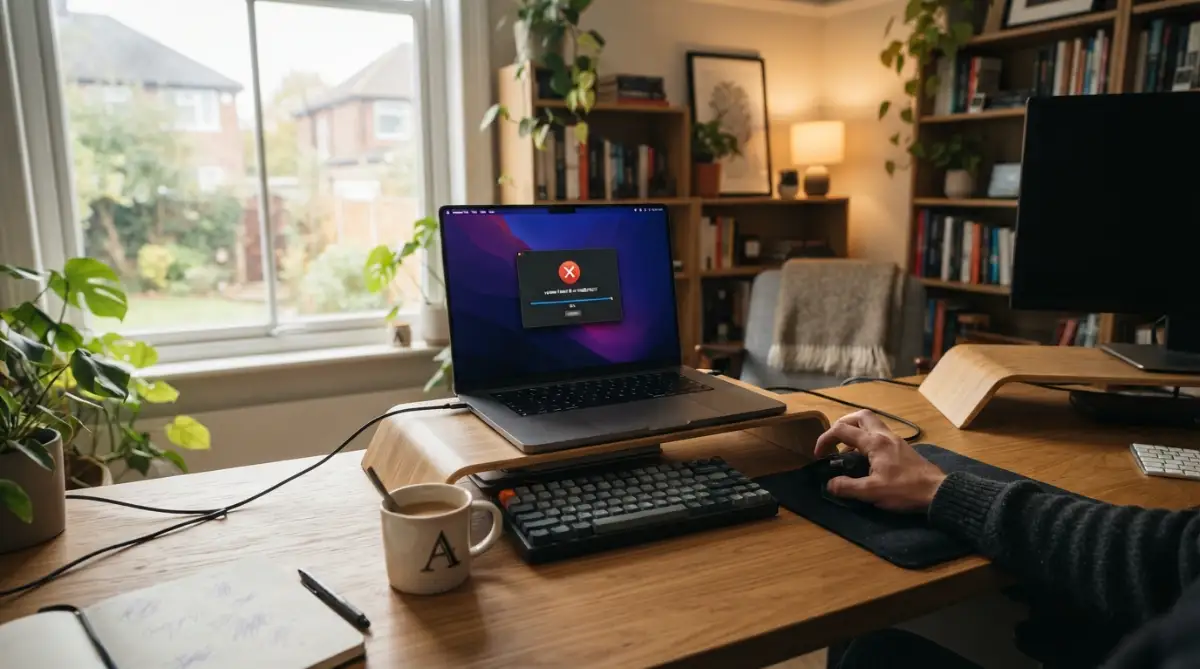
Most people assume that if they can browse the internet, their connection is perfectly fine. However, background application activity requires a highly stable, uninterrupted data stream. Even a micro-drop in your internet connection can pause an ongoing transfer indefinitely.
Think of your data transfer like a long freight train moving across a track. If even one small piece of the track breaks for a split second, the entire train has to stop and wait for repairs. Your operating system often fails to automatically restart these stalled transfers, leaving your document in a permanent "sync pending" state.
To fix this, you need to manually force the connection to reset. Simply pausing and resuming the application does wonders for waking up a sleepy connection. You can also try switching from a wireless network to a direct ethernet cable for large, heavy document folders.
Understanding the Chaos of Conflicting File Versions
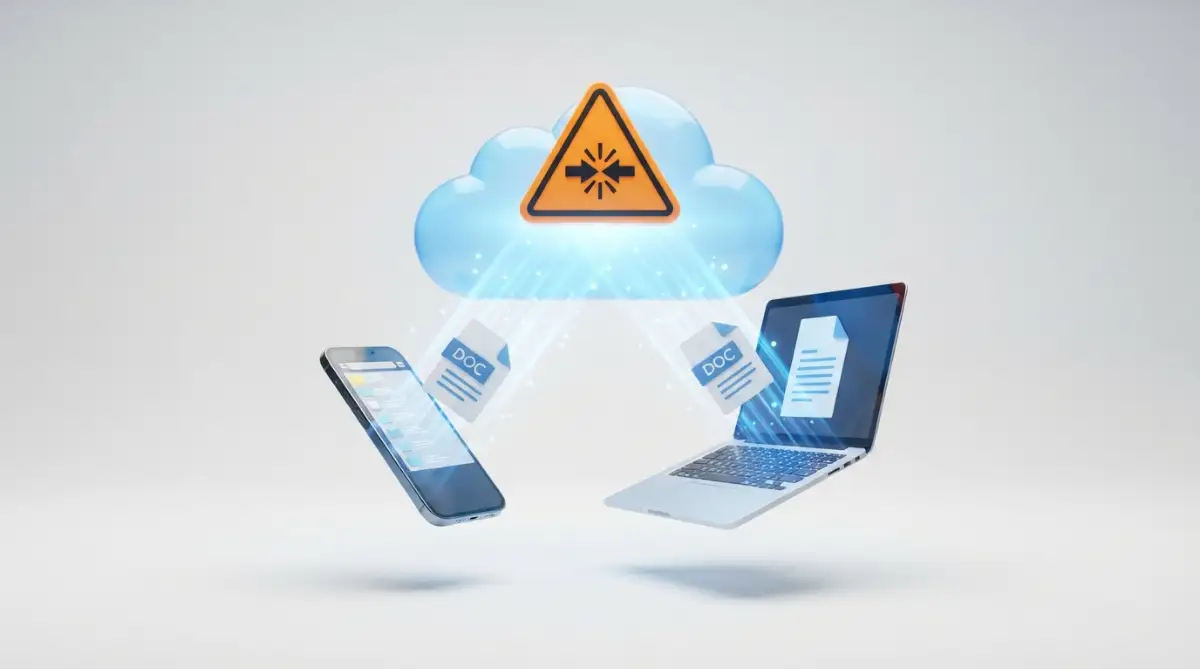
Version conflicts happen when you try to edit the same exact document on two different devices before the first edit has a chance to save online. The remote server gets confused because it receives two different set of instructions simultaneously. Instead of deleting one, it creates a duplicate copy with your computer's name attached to it.
This usually happens if you work on your laptop while sitting on an airplane without Wi-Fi. When you finally land and connect to the internet, your phone and laptop both try to push different versions of the same spreadsheet online.
I used to panic and immediately delete my local folder whenever a conflict happened, thinking a fresh download would fix it. I quickly realized this just permanently deletes unsaved offline work, so always copy your un-synced files to your desktop first before touching any app settings.
To prevent version conflicts, always make sure you close your documents completely when you finish working. Leaving a word processor open on your home computer keeps the file locked, preventing your work laptop from updating it properly.
The Heavy Burden of a Bloated Application Cache
Every program on your computer uses a hidden temporary storage area called a cache. This hidden folder acts like a waiting room for your documents before they are shipped off to the internet. Over time, this waiting room fills up with broken, corrupted, or old temporary data.
When the cache becomes completely full, no new documents can enter the waiting room. The application simply freezes, and your progress stops at 99%. Clearing this temporary folder is often the fastest way to bring a frozen application back to life.
You can easily find the option to clear temporary data deep within the advanced preferences of your desktop application. Doing this safely removes the digital junk without actually deleting any of your personal photos or text documents.
Visualizing the Fix for Background Issues
If you are tired of clicking blindly through confusing settings menus, watching a live demonstration can completely change your perspective. Watch this incredibly helpful breakdown below to see exactly which background settings you need to adjust right now.
How Aggressive Battery Savers Kill Your Productivity
Modern smartphones and thin laptops are designed to save as much battery life as physically possible. To do this, their operating systems ruthlessly shut down programs that run quietly in the background. Unfortunately, this means your online backup program gets paused the moment you minimize the window.
You might take a dozen pictures on your phone, expecting them to instantly appear on your home computer. But because your phone is on "Low Power Mode," the transfer process is completely suspended to save energy.
You must go into your device settings and manually grant unrestricted background data usage to your backup applications. This tells your phone that keeping these specific folders updated is more important than saving a tiny bit of battery.
Breaking Down File Naming Rules and Restrictions
Quick File Naming Guide: What Works & What Fails
- Don't Use: Project_Final_???*#.docx (The server reads symbols like ? and * as code errors).
- Do Use: Project-Final-Version-2.docx (Dashes and underscores are perfectly safe).
- Don't Use: Super long names buried inside 15 folders. (Windows will block anything over 255 characters total).
- Do Use: Short names saved directly on your desktop or a primary root folder.
Computers are incredibly strict when it comes to reading the names of your folders. If you use special characters like asterisks, question marks, or slashes in your document name, the remote server will flat-out reject it. These symbols are often reserved for deep system commands, so the server reads them as errors.
Similarly, there is a hidden limit to how long your document names can be. Windows, for example, typically struggles with file paths that exceed 255 characters. If you bury a file inside ten different sub-folders with extremely long titles, the system cannot process the final destination.
- Myth: Changing a file extension (like renaming a .jpg to .png) fixes upload errors.
- Reality: Changing the extension does not change the file type; it just corrupts the file and guarantees an upload failure.
Always keep your folder titles short, simple, and clean. Use basic dashes or underscores instead of complex symbols to separate words.
Navigating Hidden Storage Quotas and Trashes
30-Second Diagnostic Checklist: Why Won't It Upload?
| Your Current Problem | Most Likely Culprit | How to Fix It Fast |
| :--- | :--- | :--- |
| File is stuck at 99% forever | Full App Cache | Go to settings and hit "Clear Temporary Files". |
| Gets multiple copies with your PC name | Version Conflict | Close the document on all other devices first. |
| It says "Access Denied" | File Permissions | Right-click the folder, go to Security, and take ownership. |
Sometimes, the most obvious answer is the correct one. You might simply be out of available space on your remote server. However, many people check their dashboard, see they still have one gigabyte left, and wonder why a tiny text document will not upload.
The problem lies in hidden metadata and the digital trash bin. When you delete large videos online, they do not actually disappear forever. They sit in a hidden recycling bin for thirty days, secretly consuming your premium storage quota.
You need to actively log into the web version of your service and permanently empty the trash bin. Once you clear out those deleted gigabytes, your service will instantly resume normal activity.
The Conflict with Overzealous Antivirus Software
We all want our computers to be safe from digital threats and malware. Because of this, we install heavy antivirus software that monitors every single piece of data leaving our machine. Sometimes, these security programs become far too aggressive and block legitimate applications.
Your security software might view an active background upload as a suspicious data leak. It immediately blocks the communication ports, completely severing your connection to the remote server. Your app will sit there endlessly trying to connect, blocked by an invisible wall.
To test this theory, you can temporarily pause your antivirus shields for ten minutes. If your files suddenly start flowing perfectly, you know exactly who the culprit is. You will then need to add your backup software to your security program's permanent whitelist.
The Danger of Ignoring Software Updates
Nobody likes seeing update notifications pop up on their screen while they are busy working. We usually hit "remind me later" and completely forget about it for weeks. However, running a heavily outdated desktop client is a guaranteed recipe for connection disasters.
Technology companies constantly update their server protocols to improve speed and security. If the remote server updates its language, but your old software is still speaking the old language, they can no longer communicate.
Make it a solid habit to manually check for software updates at least once a month. A simple restart and installation can solve a majority of weird, unexplained glitches without any complex troubleshooting.
Correcting System Time and Date Discrepancies
This sounds incredibly basic, but having the wrong time on your computer will absolutely destroy your internet connectivity. Secure web connections rely on strict digital certificates to verify your identity. These certificates are heavily tied to the current global time.
If your laptop's clock is five minutes behind the actual world time, the remote server thinks your digital certificate is fake or expired. It will immediately drop your connection to protect your account from potential hackers.
Always ensure your computer is set to synchronize its time automatically with global internet time servers. If you frequently travel across different time zones, double-check that your clock updated correctly upon arrival.
Untangling Complex Administrator Permissions
Sometimes, your files refuse to leave your computer simply because the application does not have the legal right to touch them. If you migrate data from an old hard drive, those documents might still be locked to your old user profile.
When your backup program tries to read these locked files, your operating system blocks the request. The program returns an "access denied" error and skips the file entirely.
You can fix this by right-clicking your main folder and diving into the security properties. You need to manually take ownership of the folder and apply read-and-write permissions to your current user account.
Dealing with Proxy Networks and Virtual Private Networks
Privacy tools like Virtual Private Networks (VPNs) are fantastic for keeping your browsing habits anonymous. They encrypt your traffic and bounce it through servers all over the world. While this is great for privacy, it is terrible for stable file transfers.
When your data is encrypted and rerouted multiple times, it heavily increases network latency. The remote server might also flag your sudden location change as suspicious activity and temporarily block your account access.
If you are trying to push a massive project folder online, it is often best to temporarily disconnect your privacy tools. Let the program establish a direct, clean line to the server to ensure maximum speed and stability.
Managing Internal Bandwidth Throttling Limits
Many applications try to be polite by not hogging your entire internet connection. They have built-in speed limits that heavily throttle how much data they consume per second. This ensures you can still stream movies smoothly while things upload in the background.
However, if these limits are set too low, transferring a large video could literally take weeks. A temporary network drop during this long waiting period will force the whole process to start over again.
Open the network preferences within your desktop app and look for bandwidth limits. Changing the upload rate from "limited" to "unlimited" will allow the program to use the full power of your home network to finish the job quickly.
Stopping File Locking from Other Desktop Programs
A file cannot be copied or transferred if another program is actively holding onto it. If you have an image opened in a photo editing suite, the editor locks that image to prevent corruption.
Your backup software recognizes this lock and politely steps back, waiting for the editor to let go. If you minimize the editor and forget about it, that picture will remain stuck in a pending state indefinitely.
Before you leave your desk for the day, make sure you properly close all your active working windows. Give your computer a clean slate so the background applications can freely access and back up your daily progress without any resistance.
The Role of Hidden System Files
Operating systems naturally generate invisible files to track folder preferences and icon placements. For instance, Apple computers create tiny invisible items everywhere called DS_Store files.
Normally, your backup software ignores these useless items. But occasionally, one of these hidden system items gets corrupted. The software gets stuck trying to process a broken, invisible file, halting the entire queue.
You can set your computer to reveal hidden items temporarily. Manually deleting these small system caches within your main directory often clears the invisible roadblock instantly.
By taking the time to understand these underlying mechanics, you transform from a frustrated user into a capable problem solver. You no longer have to rely on luck to keep your digital life safe. Implementing these simple adjustments today will ensure your workflow remains smooth, fast, and entirely predictable tomorrow.
Taking Your Digital Organization to the Next Level
Once you fix the immediate errors causing your files to freeze, you want to make sure they never happen again. Fixing a broken application is a great first step, but changing how you handle your digital documents is what keeps your system healthy long-term.
Most everyday users treat their online drives like a messy physical drawer. They dump everything inside and hope the system automatically sorts it out. This careless approach is exactly what causes applications to choke and fail over time.
I want to share some incredibly practical habits that professionals use to keep their digital lives running perfectly smooth. If you follow these exact routines, you will never have to stare at a red warning icon ever again.
The Magic of Selective Folder Synchronization
One of the smartest things you can do today is turn on selective synchronization. By default, most desktop programs try to download a copy of every single item from your online account straight to your physical hard drive.
If you have years of old family photos saved online, your poor computer is constantly trying to index and monitor thousands of gigabytes of data. This massive workload severely slows down your machine and creates unnecessary network traffic.
Instead, open your application preferences and tell it to only sync your active project folders. You can safely leave old, archived documents completely online. By keeping your local active folders small and highly specific, your computer can process new changes instantly without any lag.
Mastering the Art of Off-Peak Data Transfers
Think about how a major highway works during morning rush hour. If everyone tries to drive to work at the exact same time, traffic comes to a complete standstill. Your home internet connection behaves exactly the same way.
If you try to upload a massive video file while your family is streaming movies and playing online games, the transfer will inevitably drop. Your router simply cannot handle that much heavy traffic at once.
To completely bypass this problem, schedule your heavy data transfers for the middle of the night. Many modern programs allow you to set strict active hours. Tell your software to only push large items online between 2 AM and 6 AM.
This simple timing adjustment guarantees maximum upload speeds because nobody else is fighting for the connection. By morning, your heavy files will be safely stored online without interrupting your daily web browsing. Following advanced secure backup strategies recommended by cybersecurity experts often involves this exact type of off-peak scheduling.
Breaking Down Massive Uploads into Bite-Sized Chunks
When you return from a long vacation, you might have a folder containing thousands of high-resolution pictures. Dragging that entire massive folder into your online drive all at once is a recipe for disaster.
When you drop thousands of items into the queue simultaneously, the software has to instantly generate metadata for every single picture. This sudden spike in processor demand often causes the program to crash silently in the background.
Instead of overwhelming the system, feed your documents to the software in smaller batches. Move a few hundred photos at a time, wait for the green checkmark to appear, and then move the next batch. This highly controlled approach guarantees a perfect transfer every single time. It is a fantastic habit for effectively managing your digital footprint without overloading your hardware.
Establishing a Weekly Digital Audit Routine
Just like you clean your physical workspace, you need to clean your digital workspace regularly. If you let old temporary documents pile up, they will eventually cause software conflicts.
Pick one day a week, perhaps a Friday afternoon, to spend ten minutes organizing your root folders. Delete unnecessary duplicate copies, clear out old screen recordings, and empty the application trash bin.
This weekly maintenance routine stops small issues from snowballing into massive technical failures. When you keep your primary directories clean, your background applications can quickly scan for changes and sync your work within seconds. This proactive habit is essential for anyone exploring online tech resources to improve their daily productivity.
Why Hardwiring Your Connection Still Matters
We live in a world obsessed with wireless convenience. Wi-Fi is fantastic for browsing social media or reading articles from your couch. However, wireless signals are notoriously unstable when it comes to continuous, heavy data transfers.
Your Wi-Fi signal can be disrupted by microwaves, thick walls, or even your neighbor's router. These tiny invisible interruptions are exactly what cause background uploads to randomly pause and fail.
If you know you are about to transfer a heavy folder, take ten seconds to plug an ethernet cable directly into your laptop. A physical wired connection provides an incredibly stable, uninterrupted pipeline to your router. You will immediately notice that your items process significantly faster and almost never fail when hardwired.

The Dangerous Habits Wrecking Your File Transfers
While trying to fix unexpected technical problems, people often panic and do things that actually make the situation much worse. I have seen countless users accidentally delete their own important documents simply because they did not understand how the system worked.
If you want to protect your personal data, you must completely avoid these common but highly destructive mistakes.
The Pitfall of the "Force Quit" Reflex
When an application freezes at 99%, the most natural reaction is to open your computer's task manager and forcefully kill the program. We assume that completely shutting it down and restarting it will clear the error.
This is actually one of the worst things you can possibly do.
When you forcefully kill an active transfer, you leave behind broken, half-uploaded "ghost" files on the remote server. The next time you open the program, it has to spend hours scanning these broken fragments to figure out what happened.
Instead of forcing the program to close, try simply pausing your internet connection for thirty seconds. Often, just dropping the local network and reconnecting allows the software to safely pause its own queue and resume normally. Understanding basic network protocol standards shows that letting an application gracefully close prevents permanent document corruption.
Ignoring the Silent Storage Warnings
Most online platforms give you plenty of warning before you completely run out of space. You will usually see a small yellow banner or receive an automated email when you hit 90% capacity.
A massive mistake people make is completely ignoring these warnings until the drive is 100% full. Once a drive reaches its absolute limit, it does not just stop accepting new items. It often completely locks up.
When the drive is totally full, you cannot even edit a simple text document because there is zero space to save the new version history. You are suddenly locked out of your own workflow. Never ignore storage warnings. Upgrading your plan or clearing out old trash takes two minutes and saves you hours of future headaches.
The Chaos of Infinite Nested Folders
Many people love organizing their documents into highly specific categories. You might have a folder called "Work," inside that a folder called "2023 Projects," inside that "Client X," inside that "Drafts," and so on.
Creating a massive chain of folders inside folders is known as deep nesting. While this looks neat to a human, it absolutely destroys your computer's ability to locate items.
Operating systems have strict limits on how long a file path can be. If your document is buried twenty folders deep, the final path name becomes too long for the background application to process. It simply ignores the document entirely.
- Bad Habit: Storing items in extremely deep, complex folder trees.
- Good Habit: Keeping your active project folders directly on your desktop or in a primary root directory.
Keeping your directory structures shallow is a known best practice for avoiding standard operating system file limitations.
Editing Across Unsynced Devices Simultaneously
This is a surefire way to completely break your document version history. Imagine you open a spreadsheet on your office computer, but the background internet connection is currently disabled. You make several big changes and hit save.
Later that evening, you open the exact same spreadsheet on your home laptop, which is connected to the internet. You make different changes and hit save.
When your office computer finally reconnects to the internet the next morning, the remote server has a complete meltdown. It has no idea which version is the correct one. It creates multiple conflict copies, and you are forced to manually combine your work line by line.
Always ensure your computer is fully connected and properly synced before you open a shared document. This simple check guarantees you are always safely handling digital permissions and editing the most current version.
Treating Cloud Storage Like a Physical Hard Drive
The biggest mental mistake people make is treating an online backup folder exactly like a regular USB flash drive. They assume that saving something to the folder means it is instantly safe forever.
Online drives are actually highly complex two-way synchronization tools. If you accidentally delete a picture on your phone, the system will actively reach out and delete that same picture from your home computer to keep everything matching.
If you want a true, permanent backup of irreplaceable family photos, you should invest in an external physical hard drive that stays disconnected in your desk drawer. Online drives are meant for active, daily workflow access, not permanent disaster recovery archives. Learning the difference between active syncing and true cold storage is key to managing background network data securely.
Your Next Steps for a Glitch-Free Workflow
Fixing a stubborn application does not have to be a stressful, hair-pulling experience. Once you understand the hidden mechanics behind these digital tools, you hold all the power. You can clearly see why things break and exactly how to put them back together.
By applying the simple troubleshooting steps we discussed, you can instantly revive frozen transfers and recover missing documents. More importantly, by adopting smart organizational habits, you can prevent these messy conflicts from ever happening in the first place. You are no longer at the mercy of unpredictable software glitches.
We highly recommend reviewing your background settings today. Take five minutes to clear out your temporary caches, check for pending software updates, and ensure your folder names are simple and clean. Small, proactive steps right now will save you from massive headaches during your next big project.
I remember how totally defeated I felt when my files used to randomly disappear right before a deadline. But once I took the time to properly understand these systems, that constant anxiety completely vanished. You have the exact same ability to take control of your digital workspace starting right this minute. Getting comfortable with these basics makes understanding smart automation tools so much easier in the future.
Frequently Asked Questions About Sync Glitches
Why is my upload stuck at 99 percent for hours?
This usually happens because a hidden system file inside your folder is corrupted, or a different program is actively using the file. Close all other open applications and try pausing and resuming your internet connection to reset the queue.
Does changing the file name fix upload errors?
Yes, it very often does. If your document name contains special characters like slashes, question marks, or extremely long spaces, the remote server will reject it. Rename the item using only short, simple letters and dashes.
Will clearing my app cache delete my saved photos?
No, clearing the application cache is completely safe and highly recommended. It only deletes hidden temporary junk files used to speed up the program, not your actual personal documents or pictures.
Why do I keep getting duplicate files with my computer name on them?
You are experiencing a version conflict. This happens when you edit the same document on two different devices before the first device has a chance to fully upload its changes to the internet.
Can my antivirus program block my online backups?
Absolutely. Overly aggressive security software often mistakes heavy background data transfers for a virus trying to steal your information. You may need to manually add your backup application to your security software's whitelist.
Disclaimer: The troubleshooting steps and technical advice provided in this article are for informational purposes only. Modifying application settings, clearing caches, or altering network preferences can affect your system's performance. Always ensure you have a separate physical backup of your most important documents before attempting any advanced software repairs. We are not responsible for any accidental data loss that may occur while following these guidelines.