
The Midnight Server Crash: When Everything Simply Stops Working
Let's be honest—nothing ruins a good night's sleep faster than a frantic call saying your entire server just went offline. You log in, stare at a black screen with a blinking cursor, and realize the core settings are completely broken. Before you start hyperventilating and reaching for an expensive IT support number, take a deep breath. We are going to walk through this exact nightmare together, step by logical step, without any confusing tech jargon.
We have all been in a situation where a simple machine update goes terribly wrong. You restart your computer, expecting everything to load up just fine. Instead, you are greeted by an angry error message telling you that your primary system settings are broken. This is a very common reality for anyone who works closely with operating systems.
People who rely on their computers for daily business understand this pain deeply. A broken configuration means lost time, angry customers, and a lot of unnecessary stress. It feels like your digital house has suddenly lost its foundation. You are left scrambling to find a quick fix while the clock keeps ticking loudly in your ears.
But I want to tell you something very important today. You do not need to panic, and you do not need to hire an expensive expert right away. There is a very logical, calm way to approach this exact problem. By breaking the issue down into small pieces, we can get your system back to normal without the unnecessary headache.

Quick Summary: What You Need to Know
- Don't panic-click: Rushing makes broken settings worse. Step away for five minutes first.
- Read the logs: Your system diary will give you the exact name of the broken file.
- Always copy before you edit: Never change a configuration file without making a backup copy first.
- Automate your safety net: Set up automatic daily backups so you can just "rewind time" when a crash happens.
Reviving Your System: A Practical Blueprint to Fix Broken Settings
The very first thing you must do when facing a broken system is to simply stop and breathe. Panic causes us to make rushed decisions, and rushed decisions usually make the problem much worse. We are going to treat this problem like a detective investigating a minor mystery. Every operating system leaves a trail of breadcrumbs for you to follow.
My Personal 3-Minute Crash Checklist:
Whenever a system goes dark on me, I stop guessing and immediately check these three things in order:
- The Power/Hardware Status: Is the machine actually running, or did a physical cable just get bumped?
- The Recent Changes: Did I install an update or tweak a file in the last 24 hours? (This is the culprit 90% of the time).
- The Event Viewer / System Logs: I open the system diary right away to see the exact red error code holding everything up.
Think of your computer as a highly organized library. Every program and function relies on a specific index card to know exactly how to behave. These index cards are your configuration files. When an index card gets torn or written over by mistake, the librarian gets confused and stops working. Our job is simply to find the torn card and replace it with a clean one.
The Art of Finding the Broken Pieces
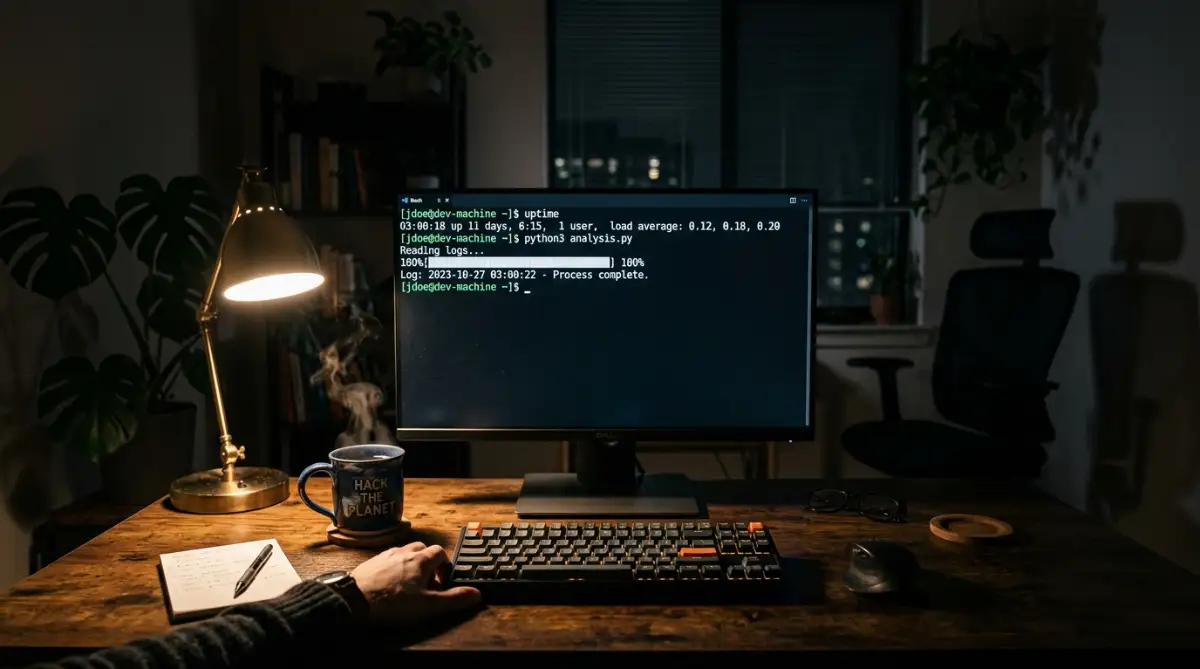
To fix the issue, we first have to figure out which specific part of the system is complaining. Every operating system has a built-in diary that records everything that happens behind the scenes. We call these records system logs. Checking these logs is like reading the diary to see exactly what went wrong right before the crash.
You need to look at the latest entries in this system diary. Usually, the system will tell you exactly which file is causing the headache. Finding the exact name of the broken file is your biggest victory in this entire process. Once you know the name of the file, the mystery is halfway solved.
Creating a Safe Zone for Testing
Before you try to fix or change anything, you must protect what is left. You should always create a backup copy of the broken file before you start tinkering with it. I know it sounds silly to save a broken file, but this is a very important safety measure. If your repair attempt fails, you can always go back to exactly where you started.
Pro Tip from My Own Experience: I used to just guess what was wrong and change things randomly hoping they would magically work out. That impatient habit only made things worse and caused me hours of extra work. My biggest realization was that stepping away for a five-minute walk gives your brain the reset it needs to see the real problem clearly. When I come back, the answer is usually staring right at me.
You can also boot your machine into a special restricted mode. This mode loads only the absolute basic functions of your computer, ignoring the complex broken files. Working in this restricted mode gives you a quiet, stable environment to perform your repairs. It is like putting the patient to sleep before performing surgery.
Understanding How Things Get Damaged
People often wonder why these files get damaged in the first place. The truth is, computers are very sensitive to sudden changes. A sudden power outage while the computer is saving a file is the most common culprit. The system gets interrupted mid-sentence, leaving the file half-written and totally unreadable.
Another common reason is a failed software update. Sometimes, an update tries to replace an old setting with a new one but gets confused halfway through. This creates a messy combination of old and new instructions. The machine cannot understand this mixed language, so it simply gives up and throws an error.
To make things easier, here is a quick cheat sheet I use to translate confusing system behaviors into plain English:
Human error is also a massive factor in these situations. We sometimes open these sensitive files to make a tiny change and accidentally delete a single comma or bracket. In the computer world, a missing comma is enough to bring an entire massive network crashing down to the ground.
A Helpful Resource to Guide Your Eyes
Sometimes, reading about a process is not enough, and you really need to see it in action to understand it fully. Watching someone calmly navigate through these exact troubleshooting steps can give you the confidence to try it yourself. The video below breaks down the visual process of finding and identifying system errors without making things overly complicated.
Watch this visual breakdown to see exactly how professionals track down these hidden system errors.
Replacing the Bad Data with Good Data
Once you have identified the broken file and secured your environment, it is time for the actual repair. The easiest and safest method is to find a healthy version of that exact same file. Most software comes with a default, clean version of its settings hidden away in a backup folder. You just need to copy that clean version and paste it over the broken one.
If you cannot find a default version on your computer, the internet is your friend. You can often find standard, factory-fresh versions of these files on official software documentation websites. Just make sure you are getting the file from a trusted, official source. Using files from random websites can introduce viruses into your sensitive system folders.
The Myth vs Reality of System Recovery
There is a lot of bad advice out there when it comes to fixing computers. Let us clear up some common misunderstandings so you do not waste your time.
As you can see, the rumors about system crashes are often highly exaggerated. By focusing on facts instead of fear, you save yourself hours of unnecessary stress.
Building a Bulletproof Safety Net for the Future
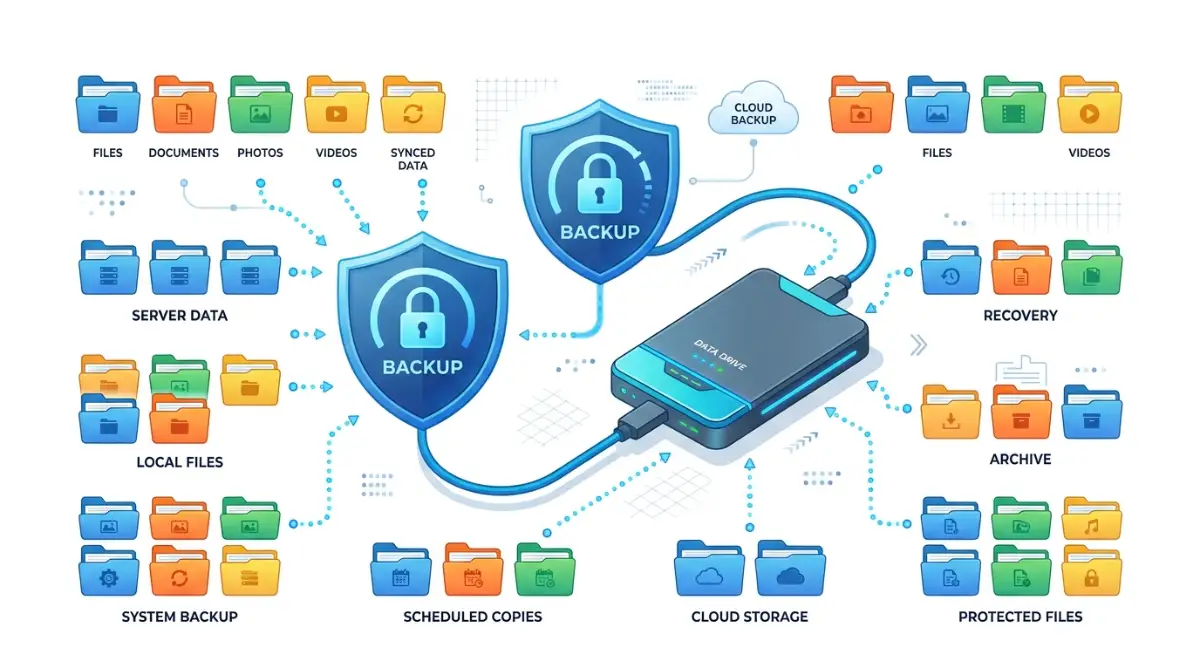
Fixing the current problem is great, but preventing it from happening again is even better. You should develop a habit of taking regular snapshots of your system when it is perfectly healthy. These snapshots act like a time machine for your computer. If things ever break down again, you can simply travel back in time to yesterday when everything was fine.
You can automate this time-machine process very easily. Almost all modern systems have built-in tools that can automatically save your settings every single night while you sleep. Setting up this automatic safety net is the single most important favor you can do for your future self. It turns a massive midnight crisis into a minor five-minute inconvenience.
The Philosophy of Calm Troubleshooting
Working with technology requires a specific type of mindset. You cannot force a machine to work by getting angry at it. The computer is simply following the exact rules it was given, even if those rules are currently broken. You have to approach the machine with patience and a willingness to understand its strict logic.
Think of troubleshooting like untangling a very messy fishing line. If you pull on the strings too hard and too fast, the knot becomes much tighter and impossible to undo. But if you gently trace each string back to its source, the knot naturally falls apart in your hands. This gentle, methodical approach is the true secret of senior technical experts.
When you finally get your system running again, the feeling of relief is absolutely incredible. You realize that you have the power to fix complex things with your own two hands. This builds a deep sense of confidence that spreads into other areas of your work. You are no longer at the mercy of the machine; you are the one quietly directing it.
Verifying Your Repairs Before Celebrating
After you have replaced the broken file and restarted your services, you cannot just walk away immediately. You must carefully verify that the fix actually worked as intended. Sometimes, fixing one file reveals that a second file was also damaged during the crash. You need to run a few basic tests to ensure the foundation is completely solid.
Try to open the program or service that was originally failing. Watch closely to see if it loads smoothly without hesitation. Check that system diary one more time to ensure no new errors are popping up in the background. A quiet diary means your system is finally happy and healthy again.
Final Thoughts on Handling Unexpected Crashes
At the end of the day, dealing with broken settings is just a normal part of working with technology. Machines are not perfect, and software will always have sudden hiccups. But now, you understand that a crash is not the end of the world. It is simply a temporary puzzle waiting for you to solve it.
The next time your system stops working, I want you to remember this exact feeling. Remember that you do not need to panic. You know how to read the system diary, you know how to protect your files, and you know how to gently untangle the digital knot. You are completely capable of handling this, step by logical step.
Next-Level Strategies for a Bulletproof Operating System
Once you understand the basic mechanics of system recovery, you need to start thinking like a senior system administrator. The goal is no longer just fixing what is currently broken on your machine. Your new goal is to create an environment where these annoying crashes rarely happen in the first place. This transition from reacting to preventing is what separates a beginner from a true professional.
The best technical experts in the world do not have magical powers or secret software tools. They simply follow a very strict set of daily habits that keep their digital environment healthy and organized. Let us explore some of these professional habits that you can easily adopt today, even if you are not an IT expert.
The Magic of the Digital Test Kitchen
One of the biggest secrets in professional system administration is the concept of a testing sandbox. A sandbox is essentially a fake version of your real computer where you can play around without any real-world consequences. Think of it like a professional chef experimenting in a private test kitchen before serving a new dish to paying customers. If the recipe tastes terrible or catches fire, the main restaurant remains completely unaffected.
Whenever you want to install a major software update or change a complex system setting, you should try it in your sandbox first. This gives you total freedom to make mistakes and learn how the system reacts to different changes. According to best practices published by the Linux Foundation on system administration, testing major changes in an isolated environment prevents catastrophic failures on your main machine. You can easily set up these testing spaces using standard virtualization tools that are completely free to use.
Treating Your Settings Like Valuable Financial Records
Most people treat their system settings like temporary sticky notes that can be easily thrown away. A true professional treats their configuration documents like highly sensitive financial records. Every single time you make a change to how your machine runs, you should write down exactly what you did, when you did it, and why you did it.
This habit of leaving a detailed paper trail is your greatest weapon against mysterious system errors. If your machine suddenly starts acting strangely on a Tuesday morning, you can check your personal change log to see what you modified on Monday night. Keeping a clean record of your digital actions prevents you from blindly guessing what went wrong during a crisis.
Automating Your Safety Net for Total Peace of Mind
Human memory is flawed, and relying on yourself to manually save backups every single week is a guaranteed recipe for failure. You will eventually get busy, forget to save your settings, and that is exactly when a crash will strike. The most powerful thing you can do is take the human element out of the backup process entirely.
You need to set up a silent background process that automatically saves a copy of your perfect settings every night while you are sleeping. If you want a better understanding of how background continuity keeps things running smoothly, you might find it helpful to explore this overview from Global24Info about managing automated home systems. By automating your safety net, you wake up every morning knowing your digital life is completely protected from sudden disasters.
Understanding the Language of Early Warning Signs
Your computer will rarely crash out of nowhere without giving you some kind of advance notice. The system log diary we talked about earlier will usually start complaining about minor memory errors days or weeks before a major file gets corrupted. The problem is that most normal users completely ignore these early warning whispers.
Ignoring a small error message on your computer is exactly like ignoring a strange noise coming from your car engine. If you want to see a great example of this, read about why a solar inverter starts beeping and how to fix it. Just like that hardware alarm, your operating system throws early warning signs to tell you a breakdown is quickly approaching. Catching these tiny whispers early allows you to fix a minor glitch before it destroys your entire configuration folder.
The Power of Incremental Changes
When normal people want to improve their machine, they usually try to change twenty different settings all at the same time. This is a massive mistake that causes immense confusion. If you change twenty things and the system suddenly crashes, you have absolutely no idea which of the twenty changes caused the actual problem.
Professionals always practice the art of incremental modification. They change exactly one setting, save the file, restart the service, and watch how the machine reacts. If the machine stays happy, they move on to the second change. This slow and steady method feels a bit boring, but it guarantees that you will never lose control of your system.

The Hidden Traps That Destroy Healthy Computers
Troubleshooting a broken machine can sometimes feel like walking through a minefield blindfolded. It is incredibly easy to make a small panic-driven decision that turns a five-minute repair job into a complete system wipe. We need to talk openly about the common emotional reactions and technical mistakes that trap unsuspecting users every single day.
If you fall into these common traps, you will quickly find yourself facing permanent data loss and extreme mental frustration. My goal is to show you where these traps are hidden so you can comfortably walk right around them.
The Security Nightmare of Open File Permissions
When a system file refuses to open or refuses to save your changes, it is usually because the system is protecting that file from unauthorized access. A very common piece of terrible advice found on internet forums tells users to simply change the file permissions so that anyone can read and write to it. This command essentially removes the lock from the file entirely.
Doing this is exactly like taking the heavy steel door off your personal bank vault just because you lost your key. Yes, you can now reach your money easily, but so can absolutely every criminal in the neighborhood. Opening your system settings to the public makes your machine incredibly vulnerable to basic cyber attacks. The Cybersecurity and Infrastructure Security Agency (CISA) strongly warns against unauthorized access to core configuration files, as this is how hackers easily take over entire networks.
The Blind Copy-Paste Trap
We have all felt the heavy desperation of staring at a broken screen at two in the morning. In that desperate state, you might search for your error message online and find a stranger offering a long, complicated string of text to fix it. The temptation to simply copy and paste that text directly into your machine without understanding it is massive.
You must heavily resist this urge with everything you have. Running commands you do not understand is like swallowing a random pill you found on the street just because you have a headache. The fix might work, or it might permanently delete your entire hard drive in a matter of seconds. You should always read the documentation to understand exactly what a command does before you press the enter key. Just as you would research how sunlight converts into household electricity before buying expensive panels, you must understand a digital command before trusting it.
Fighting the Machine While Exhausted
One of the most dangerous things you can do to a computer is try to fix it when your brain is completely drained. When you are tired, you lose your attention to detail. You might accidentally delete the wrong folder, misspell a highly sensitive configuration name, or forget to save your backup copy.
If your machine breaks late at night and it is not an absolute life-or-death emergency, the best troubleshooting step is going to sleep. Your exhausted brain will only make emotional decisions that damage the machine further. Waking up fresh with a cup of coffee makes the exact same problem look ten times easier to solve.
Editing Live Files Without a Safety Net
I see this massive mistake happening in small businesses almost every single day. A worker will open a highly sensitive, live configuration file to make a tiny spelling correction. They do not bother making a backup copy because they assume the change is too small to cause any real trouble.
Suddenly, their hand slips on the keyboard, they accidentally delete an entire paragraph of rules, and the whole business network goes down. This scenario is entirely avoidable by spending just three seconds creating a copy of the original file. Skipping the backup step to save three seconds will eventually cost you three days of stressful repair work.
Ignoring the Environment Your Machine Lives In
Many people treat software as something completely separate from the physical world. They forget that the actual hard drive holding their configuration files is a sensitive physical object. If your computer is sitting in a freezing room, a dusty warehouse, or a heavily vibrating area, the physical disk can stutter and corrupt the files it is trying to save.
You have to protect the physical environment of your machine just as heavily as the digital software. For comparison, you can look at the physical preparations required in how to protect your outdoor solar lights from freezing winter damage. The same logic applies directly to your expensive computers. A clean, temperature-controlled environment prevents random hardware stutters that lead directly to software corruption.
Reinstalling the Operating System as a First Step
There is a strange myth among casual users that the only way to fix a broken computer is to completely wipe the hard drive and start over from scratch. They treat a single corrupted text file as a reason to burn the entire digital house down. This extreme overreaction causes you to lose all your personal software, your custom settings, and hours of valuable time.
Wiping your entire system should always be the absolute final option on your list, never the first. Most software problems are isolated strictly to one tiny folder. Taking the time to locate that specific folder is much faster and less destructive than rebuilding your entire digital life from zero. Organizations like Red Hat Enterprise Linux provide extensive guides showing how targeted file recovery is always superior to a complete system wipe.
Claiming Complete Control Over Your Digital Environment
We have covered a massive amount of ground together today. You started this journey staring at a terrifying error message that threatened to ruin your entire workday. Now, you understand the deeply logical mechanics happening behind that exact error message. You know that a crashed system is simply a machine waiting for clear, calm instructions.
By taking the time to read the system diary logs, you take the heavy blindfold off your eyes. You now know exactly how to isolate a broken file, create a safe testing space, and replace the bad instructions with a healthy backup. More importantly, you understand the dangerous traps of bad internet advice, open security permissions, and exhaustion-driven mistakes.
The fear of a broken computer only exists when you do not understand how it works. By building strong daily habits like automated backups and incremental testing, you remove that fear from your life entirely. You are no longer just a passive user hoping the machine decides to work today. You are now the confident manager of your own digital space, fully capable of handling whatever unexpected bumps come your way.
I really want you to stop avoiding those small error messages and take five minutes today to set up your automated backups. My own digital life became incredibly peaceful the exact moment I stopped fearing system crashes and started preparing for them.
Common Questions About System Recovery
Can a regular person really fix these complex system errors?
Absolutely. You do not need a computer science degree to replace a broken text file. As long as you follow the steps slowly, make backups, and read the error logs, anyone can perform a successful recovery.
Will replacing a broken settings file delete my personal photos and documents?
No, it will not. System configuration files only control how the operating system and programs behave. Your personal photos, videos, and private documents are stored in a completely different part of the hard drive and are perfectly safe.
Why do my settings keep breaking after every major software update?
Sometimes, a new software update requires a completely different format for its settings. If the update process fails to translate your old rules into the new format, the file becomes confused and throws an error.
How often should I manually check my system diary logs?
You do not need to check them every day if everything is running smoothly. A good habit is to briefly scan your recent logs once a month, or immediately after you install a massive new piece of software.
Is it safe to use third-party tools to automatically fix broken files?
You should be extremely careful with automated repair tools from unknown companies. While some are genuinely helpful, many of them can mess up your file permissions or secretly install unwanted advertising software on your machine.
Disclaimer: The troubleshooting steps and technical advice provided in this article are for informational and educational purposes only. Modifying core operating system files always carries inherent risks, including potential data loss or system instability. Always ensure you have a complete, verified backup of your important files and system configurations before attempting any repairs. If you are uncomfortable performing these steps, please seek the assistance of a certified IT professional. The author and publisher are not responsible for any damages or data loss resulting from the application of this information.