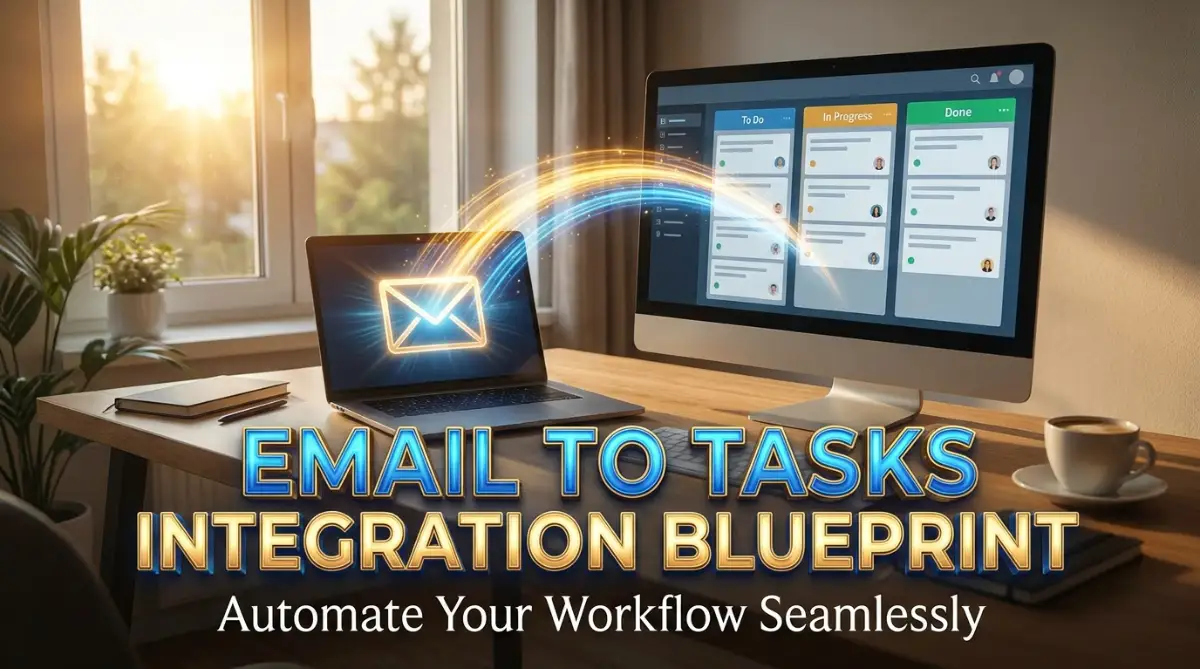
The Hidden Anxiety of a Cluttered Inbox
Look at your inbox right now. If seeing hundreds of unread emails makes your stomach drop, you aren't alone. I used to waste at least two hours a day just copy-pasting client messages into my to-do list—until I finally broke the cycle. Let me show you how to stop acting like a human copy-paste machine and make your apps do the heavy lifting for you.
I felt completely overwhelmed and out of control. Every single day, I was wasting hours manually copying details from my emails and pasting them into my task board.
My daily routine felt like a never-ending game of digital ping-pong. I would read an email, open a new tab, create a task, copy the client's words, and then go back to reply.
This manual process was silently eating away at my mental peace. I constantly worried that I had forgotten something important. Did I log that bug report? Did I assign that design revision to the right team member?
You might be feeling this exact same pressure right now. When your communication tool and your task manager do not talk to each other, you become the human bridge between them.
This constant context switching drains your energy incredibly fast. Studies show that shifting your focus between different apps destroys your concentration and makes you highly prone to making mistakes.
Instead of feeling a sense of accomplishment at the end of the day, you just feel a sense of dread for tomorrow. This is no way to work, and honestly, you deserve a system that works for you, not against you.
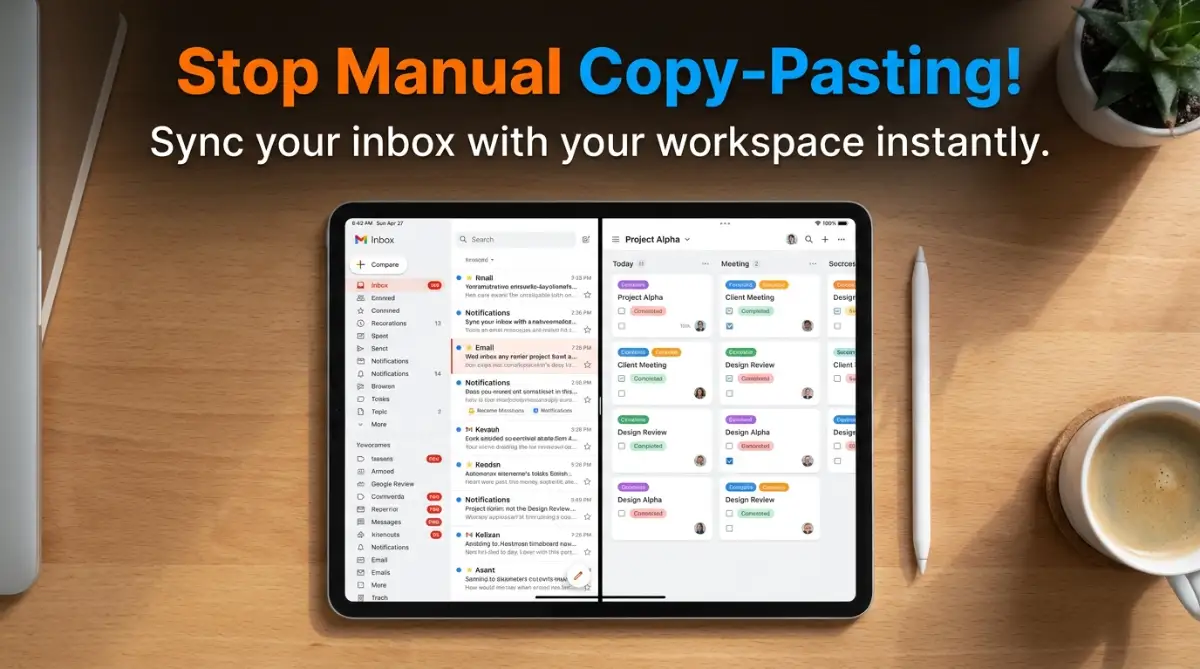
Skip the Fluff: What We Are Building Today
- The Goal: Stop copying and pasting emails into your task manager.
- The Fix: Set up a background rule that turns starred emails into active tasks automatically.
- The Result: You save hours of useless admin work every single week and stop dropping the ball on client requests.
Escaping the Digital Ping-Pong Match
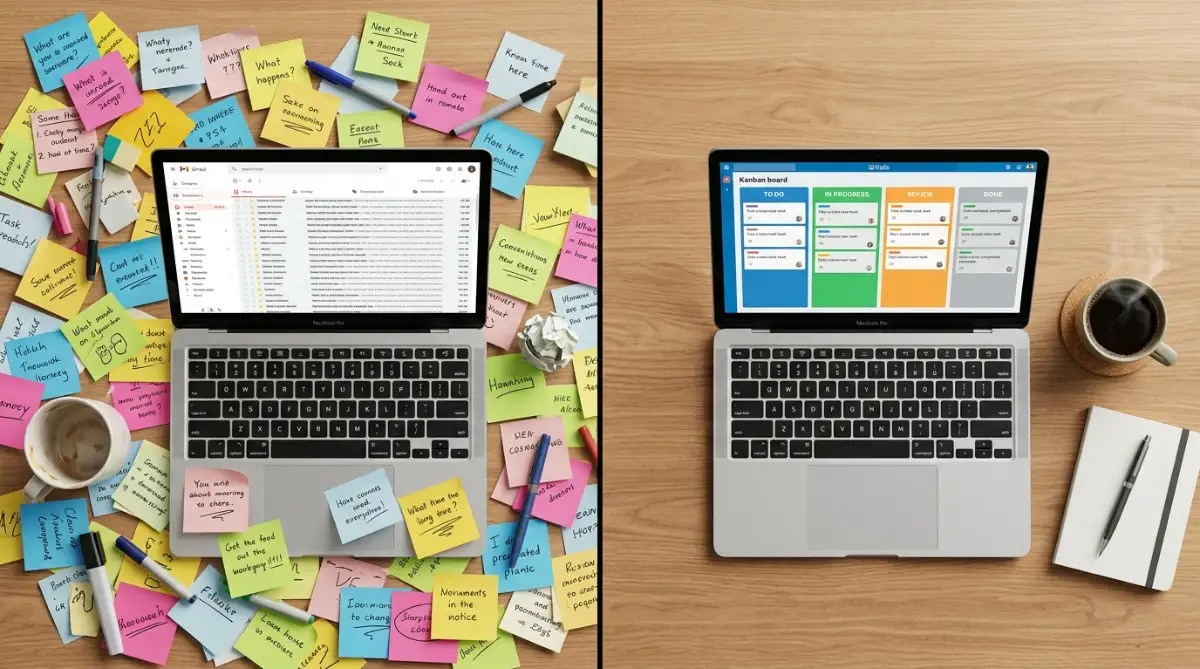
You do not have to live in this state of constant inbox anxiety. There is a very logical, highly practical way to fix this disconnect.
By setting up a direct communication line between your inbox and your workspace, you can completely remove yourself from the data-entry process. Your software can handle the heavy lifting while you focus on the creative, meaningful parts of your job.
Let us look at exactly how you can build this automated bridge. We will break down the exact logic and actions needed to turn incoming messages into organized, trackable action items.
Recognizing the Productivity Black Hole
Before you build anything, you need to understand where your time is actually going. Think of your inbox as a busy mailbox at the end of your driveway.
Your project management platform is like your kitchen pantry. Right now, you are walking out to the mailbox, taking one letter at a time, walking back inside, and putting it on the correct shelf.
You lose a few minutes of deep focus with every single switch. By the end of the day, those lost minutes add up to hours of wasted potential.
Stop Doing This Right Now! Look at exactly how you move data right now. Are you highlighting text, hitting copy, opening a new tab, hitting paste, and manually typing a due date?
If so, you have found your productivity black hole. Acknowledging this broken system is the very first step toward fixing it forever.
The Real Cost of Doing It Manually (My Personal Audit)
| Task | Manual Time (Per Week) | Automated Time | Time Saved |
| :--- | :--- | :--- | :--- |
| Creating task cards from emails | 2.5 Hours | 0 Minutes | 2.5 Hours! |
| Copying client feedback to projects | 1.5 Hours | 0 Minutes | 1.5 Hours! |
| Assigning due dates and team members | 1 Hour | 5 Minutes | 55 Minutes! |
If you do this for a whole year, you are basically winning back an entire month of free time.
Defining Your Desired Workflow Logic
You cannot automate a messy process. If your current manual workflow is chaotic, automating it will just create automated chaos.
You need to clearly map out what should happen when a specific type of message arrives. Grab a piece of paper and write down your most common scenarios.
For example, when a client emails an invoice, where should it go? When your boss sends a high-priority request, who needs to be assigned to it?
[Learn Exactly How to Map Out Your Perfect Workflow]
If you are struggling to visualize how this data transfer should look, this quick visual breakdown will change the way you organize your digital life.
Once you have a clear map on paper, configuring the software becomes incredibly simple. You are essentially writing a basic rulebook for your computer to follow.
Establishing the Perfect Trigger
Every automated action needs a starting point. In the world of software integration, this is known as the "Trigger."
The trigger is the specific event that tells your system to wake up and start working. If you choose the wrong trigger, you will end up creating a lot of useless tasks.
When I first tried this, my biggest mistake was sending every single incoming message straight to my task board. I quickly realized this just moved the mess from my inbox to my workspace. My advice is to only trigger tasks when you manually apply a specific label or star to a message.
By using a specific label, like "To-Do" or "Action Required," you keep full control over what gets converted into a task. You simply read your email, add the label, and archive it.
Your system sees that label and instantly goes to work in the background. This keeps your task board clean and highly relevant.
My "Zero-Mistake" Inbox Trigger Checklist:
Instead of moving everything, I only tell my system to pull emails that meet these strict conditions:
- The email is manually marked with a green "Send to Board" star.
- The sender is a recognized client (no newsletters allowed).
- The email actually contains action words like "fix," "update," or "invoice."
Extracting the Right Information
Once the system is triggered, it needs to know exactly what to grab from the email. An email contains a lot of different data points.
You have the sender's name, the subject line, the body text, the timestamp, and any file attachments. You have to decide where each of these pieces belongs in your new task card.
A standard best practice is to make the email subject line the main title of your task. The body of the email should become the task description.
You can also set the system to automatically attach any PDFs or images straight into the task files. This means you never have to download a file to your desktop just to upload it somewhere else again.
The Myth vs Reality of Integration
Many people avoid setting up these systems because they believe some common myths. Let us clear up these misunderstandings right now.
As you can see, the barriers to entry are basically nonexistent. The technology is built specifically for everyday people who just want to get more work done.
Creating Actionable Deadlines Automatically
A task without a deadline is just a wish. When an email turns into a task, you need to ensure it does not sit there forever.
Some advanced triggers allow you to scan the email for words like "tomorrow" or "next Friday" and automatically assign a due date. However, a much simpler approach is to use a default delay.
You can tell your integration tool to automatically set the due date to "two days from the creation date." This ensures that every new item gets a baseline deadline.
Once you are working inside your project management tool, you can easily adjust that deadline based on your current workload. The goal is simply to get the item on your radar with a ticking clock.
Handling Replies and Follow-ups
One of the most frustrating things about managing work through email is the dreaded email chain. A client sends a request, you create a task, and then they reply again with new instructions.
If your system is not smart, it might create a brand new, duplicate task for that second email. You want to avoid this at all costs.
To fix this, you should look for integrations that support "updating existing records." Instead of creating a new item, the system looks to see if a task from that sender already exists.
If it does, the new email body is simply added as a comment to the existing task. This keeps all communication neatly organized in one single place, exactly where you need it.
Routing Tasks to the Right Team Members
If you work alone, every new task obviously goes to you. But if you manage a small team, you can use your email integration to delegate work automatically.
You can set up conditional rules based on the sender or the subject line. If an email comes from a specific high-value client, the task can be automatically assigned to your senior manager.
If the subject line contains the word "Support" or "Help," the task can instantly go to your customer service representative. This removes the bottleneck of having one person manually assign out daily duties.
Everyone logs into their workspace in the morning and sees exactly what they need to do, neatly populated from the overnight emails.
Why Native Connections Work Best
When you are ready to connect these two tools, you usually have two options. You can use native features, or you can use a third-party bridge.
Native connections are built directly by the software companies themselves. For example, your email provider might have a direct add-on for your specific task manager available right in their settings menu.
These are usually the most stable and reliable options. Because the two companies worked together to build it, the data flows very smoothly.
I highly recommend checking your software's built-in app directory first. Searching for "integrations" in your settings panel takes five seconds and can save you a lot of extra steps.
Building a Bridge When Native Fails
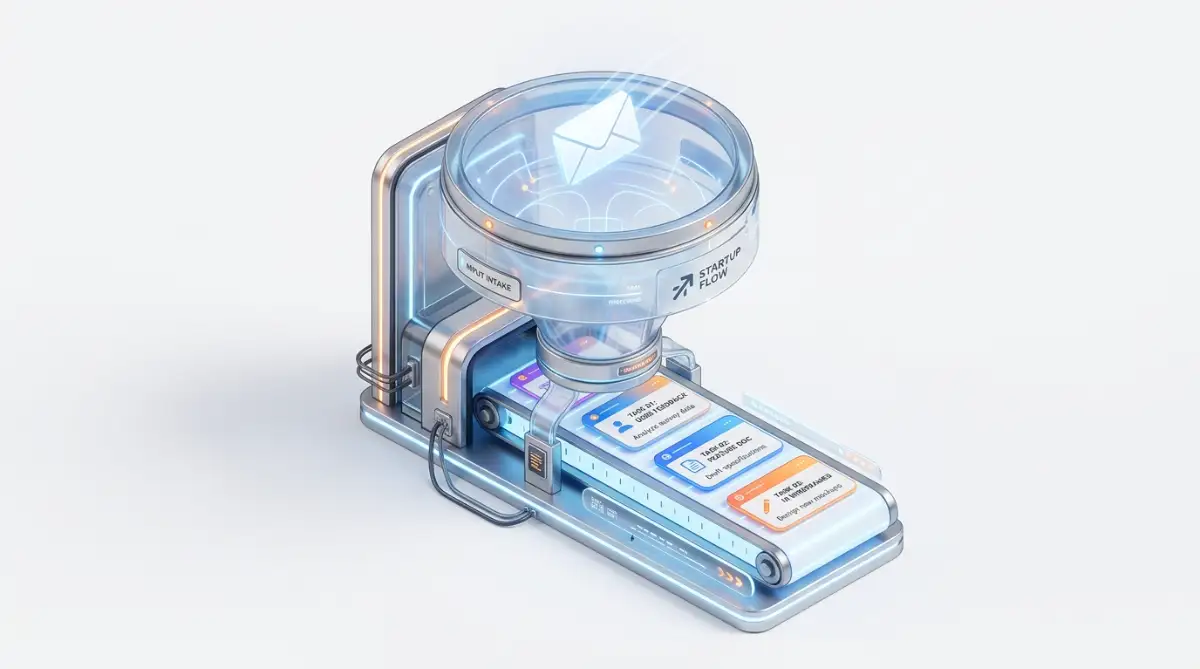
Sometimes, your favorite email provider and your project management platform do not have a direct partnership. They simply do not speak the same language by default.
This is where third-party automation tools become incredibly valuable. These platforms act as a universal translator between thousands of different apps.
You connect your email to the translator, and you connect your workspace to the translator. You then build your rules inside this middle platform.
While it adds one extra step to the setup process, it gives you ultimate flexibility. You can connect almost any digital tool on the market today using this method.
By applying these exact steps, you will slowly watch your daily stress melt away. You are essentially building a digital assistant that works for free, twenty-four hours a day, ensuring nothing ever slips through the cracks again.
Pushing Your Digital Workflow Beyond the Basics
Once you have your basic system running, you might feel like you have discovered magic. Suddenly, your messages are turning into actionable cards on your digital board without any manual typing.
But getting the basic setup right is only the beginning of your journey. To truly protect your peace of mind over the long term, you need to understand a few expert-level secrets.
These advanced strategies will stop your digital workspace from becoming just another messy dumping ground. By fine-tuning your rules, you can transform your basic bridge into a highly intelligent digital assistant.
I want to show you exactly how the top productivity experts manage their connected systems. These are the small adjustments that separate a decent workflow from a completely stress-free day.
The Magic of Conditional Filtering
The biggest mistake you can make is treating every incoming message the exact same way. A simple newsletter does not hold the same weight as an urgent contract revision from your biggest buyer.
To handle this, you need to set up conditional filters inside your automated workflow platforms. Think of a conditional filter as a smart bouncer standing at the door of your task manager.
This bouncer looks at the guest list and decides who gets a VIP table and who gets turned away. You can tell your system to scan the body of an incoming message for specific keywords.
If a client sends an email with the word "urgent" or "broken," your system should instantly push that to the top of your to-do list. You can even set it to send a direct notification to your phone for these specific triggers.
On the other hand, if a message comes from an internal team member just sharing an update, it can go into a lower-priority reading column. This completely removes the panic of wondering what needs your immediate attention when you wake up.
Mastering the Art of Automated Tagging
Organization inside your workspace is just as important as getting the data there in the first place. A board full of identical-looking cards is incredibly hard to navigate.
This is where automated tags become your best friend. When you configure your connection rules, you can attach visual markers to specific types of incoming requests.
For example, I set up a rule that looks at the sender's domain address. If an email comes from my accounting software, the resulting task automatically gets a bright yellow "Finance" tag.
If you learn how to automate repetitive data entry correctly, your brain will start recognizing these color codes instantly. You will be able to glance at your screen and know exactly what kind of work is waiting for you.
This visual sorting saves you from having to read every single title just to understand your daily workload. It is a tiny change, but it makes your daily planning phase so much faster and more enjoyable.
Handling Attachments Like a True Professional
Attachments are often the messiest part of digital communication. Someone sends you a zip file, you download it to your crowded desktop, and then you forget where you saved it.
When connecting your inbox to your workspace, you must pay special attention to the file handling settings. Most modern systems allow you to strip the attachment directly from the message and upload it straight to the task card.
However, you should set a file size limit in your automation rules. If someone sends a massive video file directly through your inbox, it might cause your automation bridge to stall or crash.
Set a rule that handles standard documents instantly, but flags heavy files for manual review. This ensures your system stays lightning-fast and your cloud storage does not get filled with unnecessary junk overnight.
The Weekly System Audit Routine
Even the smartest machines need a little bit of human supervision. You cannot just build these connections and completely walk away forever.
Things change over time. Clients change their addresses, your team members switch departments, and software companies update their interfaces.
I strongly recommend scheduling a ten-minute audit every single Friday afternoon. Use this time to look at any tasks that failed to trigger correctly during the week.
Think of this routine maintenance like taking care of your physical investments. Just as you might regularly check for unexpected issues like pests damaging expensive roof equipment, you must clear out the digital bugs clogging your automated workflows.
During this weekly check, tweak your filters, update any broken rules, and clear out the clutter. This simple habit guarantees that your system will run smoothly on Monday morning when you sit back down with your coffee.
The Hidden Traps That Will Break Your Workflow
While connecting these platforms is highly beneficial, the road is filled with hidden traps. I have seen so many smart people build beautiful systems, only to watch them completely fall apart a few weeks later.
When your digital bridge breaks, the resulting mess is often worse than having no system at all. You end up with duplicated files, missing deadlines, and highly confused team members.
Let us walk through the most dangerous pitfalls you will face. Recognizing these traps early will save you a tremendous amount of frustration and embarrassment down the line.
The Disaster of the "Reply All" Chain
We have all been trapped in a never-ending group discussion that just will not stop. Someone sends an update, and suddenly twelve different people hit "Reply All" to say "Thanks!"
If your trigger is not set up perfectly, your system will treat every single one of those replies as a brand-new project. I once woke up to find seventy-five identical task cards on my board because of a single group discussion.
This is why you must never use a basic "Every New Message" trigger. According to workplace communication experts studying information overload and employee focus, unchecked notification systems destroy daily productivity.
Always ensure your rules are strictly tied to specific folders or manually applied stars. You should be the final judge of what truly deserves a spot on your professional to-do list.
Over-Complicating Your Initial Setup
When you first open an integration tool, you will see hundreds of exciting options. It is incredibly tempting to build a massive, ten-step rule that sorts, tags, assigns, and emails people back.
Please, do not do this on your first day. Complicated rules are highly fragile and break at the slightest change in formatting.
If you try to make the computer do too many things at once, you will spend all your free time trying to fix broken connections. You will become a full-time system administrator instead of doing your actual job.
Start with a single, simple path. Move the text from point A to point B. Once that works perfectly for a whole month, then you can slowly add a tag or an automatic due date.
Ignoring the Reality of Vague Senders
Computers are incredibly literal. They will only copy exactly what the sender wrote in their message.
If a client sends an urgent request with the subject line "Quick Question," your new task card will simply be named "Quick Question." A week later, you will have no idea what that card actually means.
This happens constantly, and it completely ruins the organization of your workspace. You cannot stop people from writing bad subject lines, but you can adjust your habits.
When a vague request comes in, do not just let the automation run blind. Take three seconds to edit the subject line in your inbox before you apply your trigger label.
By changing it to "Quick Question regarding the Q3 Budget Report," your automated task will be perfectly clear when you look at it later.
Forgetting to Tell Your Team
If you work with other people, you cannot change the digital rules in complete silence. Your personal efficiency trick might accidentally cause chaos for everyone else.
If your team is used to you replying directly to their messages, they might panic when you stop responding immediately. You have to explain that their requests are now automatically going straight into the company workspace.
Communication is the glue that holds any digital system together. Take five minutes during your next meeting to show your coworkers exactly how your new setup works.
When they see how clean and organized your board is, they will probably ask you to help them build the exact same thing. Open communication prevents unnecessary anxiety and builds a stronger, more aligned working environment.
Relying Too Heavily on Perfect Conditions
We live in an imperfect digital space where servers go down and internet connections drop. Your third-party bridge might experience a temporary outage right in the middle of a busy workday.
If you completely forget how to manage your work manually, a small technical glitch will paralyze your entire business. You must always have a backup plan in mind.
Understanding the core health of your digital tools is just as important as knowing the expected lifespan of home energy hardware. Everything breaks eventually, and you must be prepared for the day it stops working.
Keep a simple notepad handy. If the software bridge drops, just take a deep breath, read your messages, and manually jot down the most urgent items until the servers come back online.
Reclaiming Your Time and Mental Clarity
Building a bridge between your communication tools and your action boards is one of the smartest investments you can make in your professional life. You are completely removing the most boring, repetitive parts of your daily routine.
By taking the time to map out your logic, set precise triggers, and map your data fields, you take back control of your schedule. You no longer have to live in fear of missing a hidden request buried at the bottom of a spam folder.
Remember to start incredibly small. Build one simple rule today, test it with a test message, and watch the magic happen on your screen.
As you get more comfortable, you can slowly start introducing smart filters, color-coded tags, and automated team assignments. Always respect the limits of the technology, and never forget to do your weekly audits to keep everything running beautifully.
Every minute you save from copying and pasting is a minute you get back for creative thinking, spending time with family, or simply resting your mind. You are not just organizing digital cards; you are actively designing a healthier, more peaceful way to work.
I honestly wish I had set this system up years ago. My inbox used to dictate my entire mood, but now I log in, apply my labels, and watch the system handle the rest perfectly.
Frequently Asked Questions About Connecting Workspaces
Do I need an expensive paid account to connect these tools?
Not at all. Most major software platforms offer basic native connections completely free of charge. Even third-party bridging services usually have a free tier that gives you enough monthly actions to handle a standard personal workload comfortably.
Will running these background automations slow down my computer?
No, these processes happen entirely in the cloud, on the company's servers. Your personal computer or laptop does not do any of the actual heavy lifting, so you will not experience any slowdowns or battery drain.
What happens if a sender includes a massive file attachment?
It depends on how you configure your file limits during setup. Most systems will successfully transfer standard documents, but if a file exceeds a certain size limit (usually around 25MB), the system might just create the text task and leave the heavy file behind.
Can I stop the automated rules if things get messy?
Absolutely. Every tool gives you a simple toggle switch to pause or turn off a specific rule instantly. If a client starts sending a flood of confusing messages, just turn the rule off, sort out the mess manually, and turn it back on when things calm down.
Is my private data safe when using third-party bridges?
Reputable connection services use high-level encryption to securely pass your data from one platform to another. However, you should always check your company's internal security policy before connecting any personal tools to your official workplace accounts.
Disclaimer: The information provided in this article is for educational and informational purposes only. We are not responsible for any data loss, workflow interruptions, or software malfunctions that may occur while setting up third-party integrations. Always back up your important files and consult your company's IT security guidelines before granting external applications access to your private communication channels.