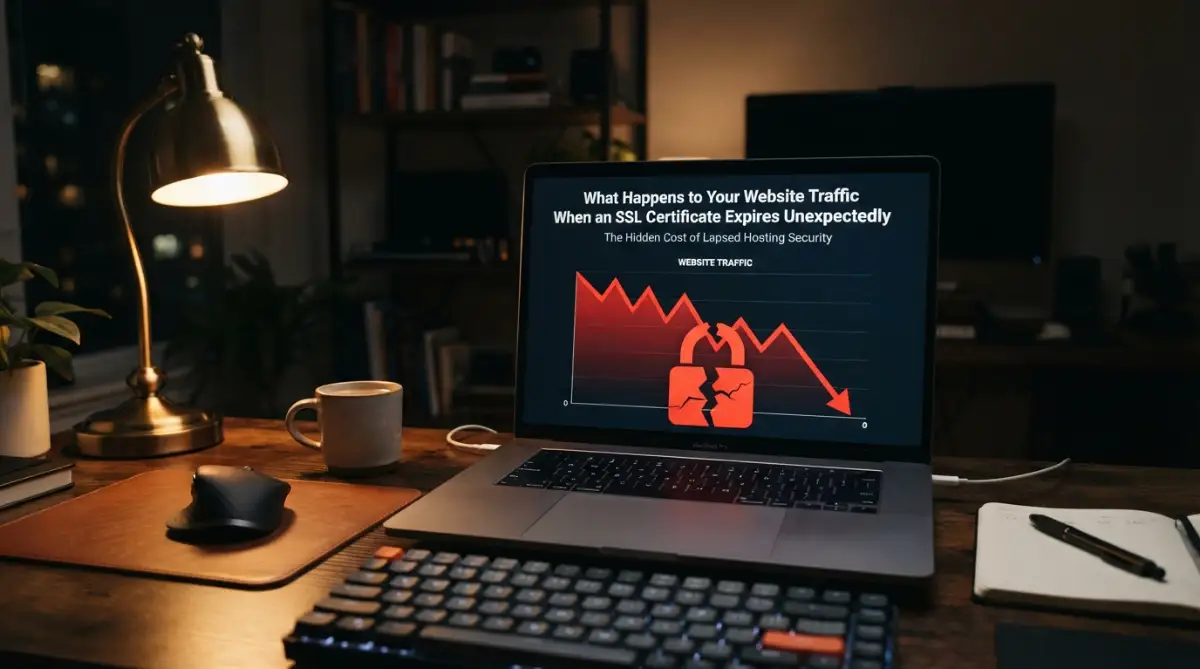
The Sudden Heartbreak of a Crashed Dashboard
You grab your morning coffee, load up your traffic stats, and... zero. Your heart drops into your shoes. Before you panic and think a hacker wiped out your entire business, let me save you a massive headache. 9 times out of 10, it's just a tiny expired security file. Let's fix that annoying red warning screen right now so you can get your readers—and your ad revenue—back today.
That single missing green padlock cost me hundreds of loyal readers and a solid chunk of daily ad revenue before breakfast. You pour your absolute soul into creating amazing content, building links, and growing a community. Seeing all that hard work vanish in the blink of an eye is a truly terrifying experience. You start to question if Google has penalized you permanently.
This is an incredibly common nightmare that everyday bloggers and small business owners face. When your security credentials drop unexpectedly, the financial and emotional toll hits hard. You lose sleep wondering how many potential customers were greeted with a scary red warning screen. Your peace of mind shatters because you realize how fragile digital success can actually be.
When a site becomes unsecured, the internet treats it like a dangerous neighborhood. Browsers actively block people from entering, and search engines pull your pages out of the top results. Trust takes years of genuine effort to build, but it takes only seconds to destroy.

Quick Fixes: What You Need to Know Right Now
- Check your hosting dashboard first to see if your auto-renew simply failed to trigger.
- Force the server to generate a new key, then clear your browser cache to test it.
- Fix any "mixed content" warnings by making sure older images load with HTTPS.
- Set up a free third-party alert system so you get a text message before this ever happens again.
The Immediate Fallout When Security Credentials Drop
When your site loses its secure status, a rapid chain reaction begins behind the scenes. This is not just a minor technical hiccup that you can ignore for a few days. The internet is built on strict trust protocols, and without that digital signature, you instantly become an outsider.
Think of it like trying to board an international flight with an expired passport. The security guards will not let you pass, no matter how much you try to explain the situation. Web browsers act exactly like those airport security guards.

The Dreaded Red Warning Screen
The moment your security lapses, popular browsers like Chrome, Safari, and Firefox jump into high alert. They immediately place a massive, terrifying warning screen between your content and your visitor. This page usually features a bright red icon and bold text stating, "Your connection is not private."
Average internet users do not understand the technical details behind web hosting. When they see a warning that attackers might be trying to steal their passwords or credit cards, they panic. They instantly click the back button and run away to a competitor's platform.
This causes your bounce rate to skyrocket to catastrophic levels. A high bounce rate sends an immediate negative signal to search algorithms. The system assumes your content is broken, irrelevant, or outright dangerous.
How Search Engines Handle Unsecured Platforms
Google made it completely clear a long time ago that HTTPS is a required ranking signal. They want to provide their users with the safest browsing experience possible. When your site suddenly drops back to HTTP, you lose that positive ranking boost instantly.
Search crawlers visit your pages frequently to check for updates. If a crawler encounters an invalid security status, it might temporarily pause indexing your new content. If the problem persists, your high-ranking pages will start to slide down the search results.
The longer you wait to fix this issue, the harder it becomes to regain your original positions. I have seen websites lose first-page rankings within 48 hours of a security expiration. Regaining that lost ground often takes weeks of consistent effort and fresh content.
Quick SEO Reality Check
- The Big Myth: Google will permanently ban your site if your SSL expires.
- The Real Truth: Search engines just pause sending traffic to protect users. Once you fix that missing padlock, your rankings usually pop right back up to normal within 72 hours. Do not panic, just fix the certificate!
Understanding the True Impact (A Quick Comparison):
Why Automatic Renewals Sometimes Fail Us
We live in an era where web hosting companies promise completely hands-off management. Most modern dashboards include a simple toggle switch for automatic security renewals. We turn it on, forget about it, and assume the robots will handle everything perfectly.
However, technology is deeply flawed, and automated scripts break all the time. Sometimes a simple billing error or an expired credit card stops the renewal process. Other times, a temporary server glitch prevents the system from verifying your domain ownership.
My Personal Realization: I used to trust my hosting provider blindly until my automated script failed silently in the background. I realized then that I must always set a personal calendar reminder three days before my security expires. Taking manual control over this one tiny detail has saved me from repeated disasters.
If you rely on free tools like Let's Encrypt, you have to remember that those certificates expire frequently. They require validation every few months to remain active. If your hosting environment changes or a firewall blocks the validation request, the silent failure begins.
Here is a quick video explaining exactly how these security warnings impact user behavior:
Watch how actual internet users react when they encounter a scary privacy warning on a previously trusted blog.
Rebuilding Trust and Restoring Your Traffic
Panic is your worst enemy when dealing with hosting errors. You need a clear, logical plan to get things running smoothly again. The good news is that the internet is highly forgiving once you correct the underlying problem.
Step One: Auditing Your Hosting Dashboard
The very first thing you must do is log directly into your hosting control panel. Stop looking at your analytics and go straight to the source of the problem. Look for the section labeled "Security" or "SSL/TLS Status."
You will likely see a red alert indicating that your domain is unprotected. If you have an active automated service, look for a button that says "Run AutoSSL" or "Force Renewal." Clicking this button often forces the server to try the validation process again.
If it works, the system will generate a fresh cryptographic key within a few minutes. You should see the status change from a red warning to a green success message. Do not celebrate just yet, because you still have to verify it on the front end.
Myth vs Reality: The Waiting Game
The Myth: You have to wait 24 to 48 hours for the new security status to propagate across the internet.
The Reality: Unlike DNS changes, security updates are almost instantaneous. Once the server applies the new key, your site should load securely right away.
If you still see the warning screen on your phone or laptop, your browser is probably holding onto old data. You need to clear your browser cache completely or open an incognito window. This forces the browser to fetch the most recent version of your platform.
Step Two: Fixing Mixed Content Errors
Sometimes, renewing the main security file does not completely fix the warning signs. You might notice that the red warning is gone, but the green padlock is missing. Browsers might show a gray circle with an exclamation mark instead.
This happens due to something called a "mixed content error." It means your main page loads securely, but some images or scripts are still trying to load over old HTTP connections. Browsers hate this because it creates a loophole for attackers.
You must ensure that every single element on your site uses the secure HTTPS protocol. If you use a popular content management system, you can often fix this easily. There are free plugins available that automatically rewrite all your old image links to the secure version.
You should also check your primary domain settings in your dashboard. Make sure both the "Site Address" and "Home Address" include the "s" at the end of HTTP. This simple letter makes a massive difference in how servers deliver your content.
My Favorite Free Tools to Spot Mixed Content:
| Tool Name | Why I Use It | What It Actually Finds |
| :--- | :--- | :--- |
| Why No Padlock? | The absolute easiest tool for beginners. | Tells you exactly which image or script is causing the red warning. |
| Chrome DevTools | Built right into your browser (press F12). | Highlights bad HTTP links instantly in the 'Console' tab. |
| JitBit SSL Checker | Scans your whole site at once for free. | Finds hidden, unsecured links buried deep in your older blog posts. |
Step Three: Forcing All Traffic to the Safe Zone
Once everything is working correctly, you want to guarantee that nobody can accidentally access the unsecured version. People might have old bookmarks saved, or external blogs might link to your old HTTP addresses. You need a reliable way to catch these visitors and redirect them instantly.
You can set up a permanent 301 redirect at the server level. This acts like a digital traffic cop, pointing everyone who arrives at the old address toward the new, secure location. Your hosting provider usually offers a simple toggle switch called "Force HTTPS" inside the security settings.
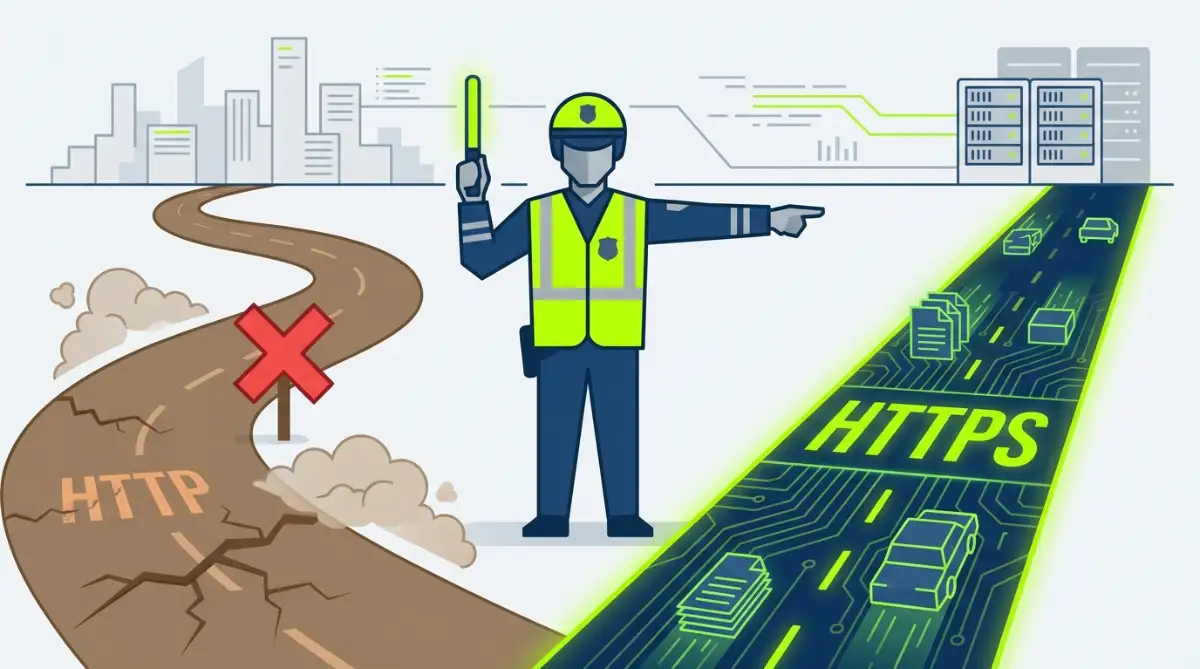
Turning this on ensures that every single visitor enjoys an encrypted experience. Search engines also love this because it clearly tells them which version of your platform to index. It consolidates your ranking power and prevents duplicate content issues.
Step Four: Communicating with Search Algorithms
After you secure your platform, you should proactively invite search crawlers back to your pages. Do not just sit around waiting for them to notice your hard work. You can speed up the recovery process by using your webmaster tools.
Log into your search console and submit your main sitemap again. You can also use the URL inspection tool on your most popular articles. Requesting fresh indexing tells the system that your site is safe, active, and ready for visitors again.
Keep a close eye on your search console coverage reports over the next few days. The system will alert you if it still finds old, unsecured links lingering in the background. Addressing these small errors quickly helps you regain your previous traffic levels much faster.
The Psychology of Regaining Visitor Confidence
When a regular reader encounters a security error, they might feel hesitant to return immediately. They might wonder if your platform suffered a data breach or a malicious attack. You have to rebuild that relationship through consistency and transparency.
If you run a newsletter or an active social media community, honesty is the best policy. You can write a brief, friendly message explaining that you experienced a temporary hosting glitch. Assure your audience that their data was never at risk and that everything is running perfectly now.
People appreciate transparency from the creators they follow. Acknowledging a mistake often makes your brand seem more human and relatable. It proves that you actively care about providing a safe environment for your audience.
Maintaining a flawless security record going forward is non-negotiable. It proves to both your readers and search engines that you are a serious publisher. When people feel safe on your platform, they stay longer, read more articles, and click more links.
By taking complete ownership of your hosting environment, you protect your hard-earned digital assets. You transform from a passive user into an active manager of your online business. That shift in mindset guarantees long-term stability and continued growth for your entire brand.
Long-Term Defense Strategies for Your Web Server
Getting your security status back online is a massive relief, but treating this as a one-time chore is dangerous. The internet is constantly changing its rules regarding how data travels safely between servers and visitors. You need a proactive defense system to ensure you never wake up to another zero-traffic day. I want to share the exact strategies professional site managers use to keep their platforms bulletproof year-round.
Relying entirely on a single automated script is like driving a car without checking the oil. You might run perfectly for a long time, but a sudden breakdown is always looming. Instead of blindly trusting a free plugin or your host's default settings, you need multiple layers of verification. This approach guarantees that even if your primary renewal method fails, you have backup systems ready to catch the error.
Setting Up External Monitoring Alerts
Your hosting provider usually sends warning emails before your digital credentials expire. However, those emails often end up buried in your promotional folder or marked as spam. You cannot depend on those automated server messages to protect your main source of income.
The best defense is setting up an independent, third-party monitoring tool that checks your domain daily. These tools simulate a real visitor connecting to your site and verify that the security handshake happens correctly. If they detect an upcoming expiration date within a dangerous window, they ping your phone directly.
You do not need an expensive enterprise solution for this task. There are plenty of reliable, free uptime monitors that include basic security checks. Receiving a simple SMS alert two weeks before a failure gives you plenty of time to log in and force a manual update.
This strategy is similar to how we protect business data when managing external systems. You always want an outside observer watching your most important assets.
Why You Should Consider Premium Security Options
Free security certificates from providers like Let's Encrypt are amazing tools for beginner bloggers. They encrypt data perfectly and satisfy all the basic requirements search engines look for today. However, they come with a major catch: they expire very quickly, usually every 90 days.
This short lifespan means your server has to perform an automated validation process four times a year. That is four separate chances for a server glitch, a DNS error, or a temporary timeout to ruin your traffic. For a high-traffic business, this constant cycle of renewal introduces unnecessary risk.
If your platform generates significant revenue, upgrading to a premium, paid security option makes a lot of sense. These paid options usually remain valid for a full 365 days, dramatically reducing the chances of a sudden lapse. They also provide higher warranty protections and sometimes display enhanced trust badges to your visitors. The small annual fee easily pays for itself by preventing just one afternoon of lost sales.
Creating a Routine Audit Schedule
Technology professionals never assume their servers are running perfectly without looking at them. You need to develop a habit of running manual health checks on your entire hosting environment. Pick one day every single month to dedicate to platform maintenance.
During this routine audit, open your site in several different browsers, including those you rarely use. Click through your most popular pages and keep a close eye on the address bar. Look for any subtle warnings, like a missing padlock icon, which indicates that a recent image upload might be causing a security conflict.
You should also check your search console during this time to see if Google has reported any temporary connection errors. Sometimes, search crawlers catch small configuration mistakes before your actual visitors notice them. Catching these tiny technical hiccups early prevents them from turning into massive algorithmic penalties later.
By running these manual checks, you stay deeply connected to the technical health of your project. The more you understand how your server communicates, the less intimidating these technical challenges become.

The Hidden Traps That Keep Your Traffic Down
Even when you realize your security has dropped, trying to fix it too quickly can lead to even bigger disasters. I have watched many smart people panic and press the wrong buttons inside their hosting dashboard. When you rush through technical repairs, you often create secondary problems that hide the original issue.
These small configuration mistakes tell browsers that your server is confused, which extends the red warning screens for days. You must approach the recovery process calmly and systematically. Let's look at the specific traps that trip up most website owners when they try to restore their secure connections.
Forcing Encryptions Without Valid Credentials
One of the most dangerous things you can do is force your entire site to load securely before the new file is actually installed. Many modern dashboards feature a simple "Force HTTPS" toggle switch. When panic sets in, people often flip this switch thinking it will magically create a secure connection.
If you force secure connections while your actual credentials are still expired or broken, you trap your visitors in an error loop. The server tells the browser to demand a secure link, but it fails to provide the necessary proof. This results in a persistent "connection refused" error that completely locks down your domain.
You must always verify that your new security file is active and healthy before you force the global redirect. Use an online checker tool first to confirm that the outside world sees a valid, green status. Only after you receive that positive confirmation should you activate any forced redirection rules.
Overlooking Content Delivery Networks
Many modern sites use an external network (like Cloudflare) to serve their pages faster to global visitors. These networks act as a shield, sitting directly between your main server and the internet. When your security lapses, fixing it on your main server might not solve the problem immediately.
The external network might have its own security settings that conflict with your recent updates. For example, if you change a setting on your origin host, the delivery network might still expect the old configuration. This creates a confusing mismatch where the network blocks the connection, even though your main host is perfectly fine.
You must remember to clear the cache on both your hosting server and your external delivery network. Always check the specific encryption settings inside your network's dashboard to ensure they align perfectly with your host. This double-check ensures that data flows securely across all network layers without interruption.
Ignoring Broken Internal Links
After a sudden security failure, you might install a fresh certificate and get the main pages working beautifully. You breathe a sigh of relief and walk away, thinking the crisis is completely over. However, you might have left dozens of broken internal pathways hiding deep inside your older content.
If you have older blog posts that hard-code images using HTTP addresses, those specific pages will still trigger browser warnings. Visitors reading your best-performing archived content will suddenly see security alerts right in the middle of a paragraph. This shatters the reading experience and sends negative user signals back to search engines.
You cannot fix this by simply renewing the main server file; you have to update the actual text inside your database. Using a search-and-replace tool allows you to safely change all those old HTTP links to the correct HTTPS format. Cleaning up your internal structure is just as important as fixing the main server settings.
My Personal Realization: I once spent three days fighting with my hosting support team over a persistent browser warning. It turned out my server was perfectly fine, but a single tracking pixel in my footer was loading over an unsecured link. Finding and deleting that one bad line of code instantly turned my entire site green again.
Moving Forward With Total Confidence
Losing a massive chunk of your daily traffic over a simple security expiration feels incredibly unfair. You put so much energy into creating amazing things, and an invisible technical error should never have the power to erase that progress. The internet is a strict place, but it is also a logical system that rewards proactive management.
By understanding exactly how browsers protect internet users, you remove the fear from the equation. You no longer have to panic when you see a sudden drop in your dashboard analytics. You now know exactly where to look, what buttons to press, and how to verify that your connection is safe again.
Setting up independent monitors and choosing reliable security options gives you true peace of mind. You can go to sleep knowing that your visitors are enjoying a fast, safe, and entirely protected experience on your platform. You have taken control of your technical environment, which is a massive step toward long-term success.
I remember how terrifying it was the first time my site went down and my visitor count hit zero. Taking the time to understand these hosting mechanics completely changed how I run my digital projects today. Don't let a temporary technical glitch hold you back; go check your security settings right now and secure your hard-earned traffic.
Important Questions About Hosting Security Lapses
Does an expired security file permanently ruin SEO?
No, the damage is usually temporary if you fix the error quickly. Search engines will temporarily drop your rankings to protect users, but they typically restore your positions within a few days after you install a valid certificate.
Why do some browsers show warnings while others do not?
Different browsers use different validation methods and cache old data for varying lengths of time. If you update your server but someone still sees a warning on Chrome, they likely need to clear their local browser history or try an incognito window.
Can I run a basic blog without these encrypted connections?
Technically yes, but practically no. Modern browsers will aggressively block users from visiting any unencrypted page, and search engines will refuse to rank your content, making it impossible to grow an audience.
Will my external network (CDN) hide an expired host certificate?
Sometimes a CDN can temporarily mask a host error by serving cached pages to visitors. However, once the cache clears or the CDN tries to fetch fresh data from your server, the entire connection will fail and trigger a massive error screen.
Disclaimer: The information provided in this article is for educational and informational purposes only. Web hosting environments, server configurations, and search engine algorithms change frequently. While the strategies shared are based on industry best practices, you should always consult with your specific hosting provider's technical support team before making major changes to your server settings.